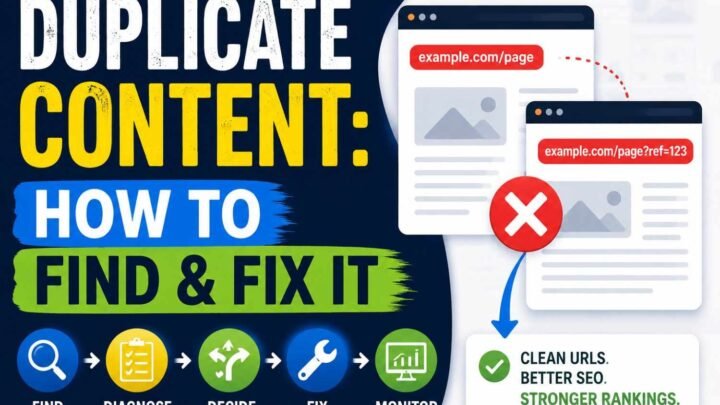
You open one page. Looks normal. But behind it, your site may have three URLs for almost same thing:
example.com/shoesexample.com/shoes?utm_source=googleexample.com/shoes?sort=price
For you and me, it feels like same shoes page. Nothing strange. But search crawler sees three different URLs. This is where small SEO confusion start.
I have seen this happen from ads, filters, tracking links, even simple site settings. Then one question comes: which URL should Google keep as the main one?
This is where a canonical URL helps. You tell search engines, “this URL is my preferred version.” Usually we do it using a canonical tag.
But one thing matter. Canonical tag is not order given to Google. It is a signal, a preference. Google still checks other clues before choosing its own canonical URL.
What Is a Canonical URL?
A canonical URL is the web address you want search engines to treat as the main version when two or more pages are same, or almost same.
Think simple. Your page may open with /shoes/, /shoes/?utm=email, and /shoes/?sort=new. To you, maybe same page. But these are different URLs for a crawler. Canonical means, “this one is my main version.”
I used to think URL and canonical URL are same thing. Not always.
- URL: address of any page.
- Canonical URL: preferred address among duplicate or similar pages.
- Canonical tag: small HTML signal pointing toward that preferred address.
- Canonicalization: the whole process of deciding which version represents those similar URLs.
A page can also choose itself. This is called a self-referencing canonical.
Canonical URL Meaning in One Sentence
A canonical URL is the version of a similar or duplicate page you prefer Google to treat as the main one.
Canonical URL vs Canonical Tag
The canonical URL is the destination. The canonical tag is the HTML signal pointing there.
One important thing: your choice is not final order. Google can still select another URL when other signals on your site tell a different story.
A Simple Canonical URL Example
Say you run a shoe store. Your main category page is:
https://example.com/running-shoes
But people reach same page from email, sorting, or homepage links:
https://example.com/running-shoes/?utm_source=emailhttps://example.com/running-shoes/?sort=pricehttps://example.com/running-shoes/?ref=homepage
Looks different, yes. But the running shoes shown there may be almost same. This is where I see beginners getting stuck. They think four URLs means four useful pages. Not really.
You want the clean URL to be your preferred canonical URL. So those duplicate versions can point back to it with a canonical tag:
<link rel="canonical" href="https://example.com/running-shoes/">Now your site is basically saying, “These pages look same, this clean one is the version I prefer.”
Google still checks other signals before deciding. Canonical is not a magic order.
3+ URLs → same content → one preferred URL → canonical signal → Google checks → representative URL
Why Do Duplicate URLs Happen?
Duplicate URLs can happen even when you never created a second page. This confused me first time I saw it. One article, same words, but Google can reach it through five URLs.
Your marketing link may add UTM tracking. A shop adds ?sort=price, color filters, size choices, or product variants. Login systems sometimes create session IDs. Then small things join the mess too — HTTP and HTTPS, www and non-www, /page and /page/, even uppercase and lowercase URLs.
CMS also makes its own paths. Category archives, tag pages, printer-friendly pages, search filters, and random parameters may show almost same content. Syndicated or copied versions can create another case.
So duplicate URL does not always mean somebody did bad SEO. Many times, website simply works this way.
Duplicate Content Is Not Always Spam
This part matters. Technical duplicate content happens naturally.
I don’t start fixing a site by shouting, “duplicate content problem.” First I ask one better question:
Which URL should Google keep as the main version?
That preferred URL should normally get your internal links, sitemap support, and canonical signal. We are not trying to hide every duplicate. We are helping search engines understand which URL should carry the combined SEO signals.
What Does a Canonical Tag Look Like?
A canonical tag looks small. When I first seen it in page source, I also thought, this one line doing SEO work? Yes, but each part has a job.
<link rel="canonical" href="https://example.com/running-shoes/"><link> tells browser and search engine that this line explains a relationship with another URL.
rel="canonical" is important part. It says, “This URL is the preferred representative of this page.”
Then href= gives the actual canonical URL Google should consider.
Normally, this code sits inside the HTML <head>, not inside your visible article.
Use the Full Preferred URL
I prefer using the complete URL because small URL mistakes become big confusion later.
Use:
https://, not an unwanted HTTP version- correct hostname such as
wwwor non-www - your normal trailing slash structure
- the real final URL, not a URL that redirects again
Before publishing, open that canonical URL yourself. If it lands exactly where you wanted, good. One tiny check can save many indexing headaches.
What Is a Self-Referencing Canonical?
A self-referencing canonical is little strange first time you see it. The page is saying, “Yes, I am my own preferred URL.”
For example, this page:
https://example.com/blog/canonical-urls
may have this inside its HTML:
<link rel="canonical" href="https://example.com/blog/canonical-urls/">You may ask, if this already main page, why point back to itself?
Because same content can appear later through messy URLs, like ?utm_source=email, tracking links, or other URL forms. The self-canonical gives search engines one clear preferred address.
I usually check this in page source first. Many WordPress SEO plugins and CMS systems already create self-referencing canonical tags, so adding another one can make new trouble.
Still, this tag is not a lock. Google treats canonical signals as a preference. Google can choose another canonical URL when redirects, internal links, sitemap URLs, or other signals tell a different story.
How Does Google Choose a Canonical URL?
Google does not see your rel="canonical" tag and just obey it. This part confused me first too. Canonicalization works more like many clues sitting on one table.
Google crawls URLs → finds pages with same or very similar main content → puts those pages into a group → checks different canonical signals → then selects one URL as the representative page. Google’s current documentation says this chosen page is normally the one its systems see as the most complete and useful version.
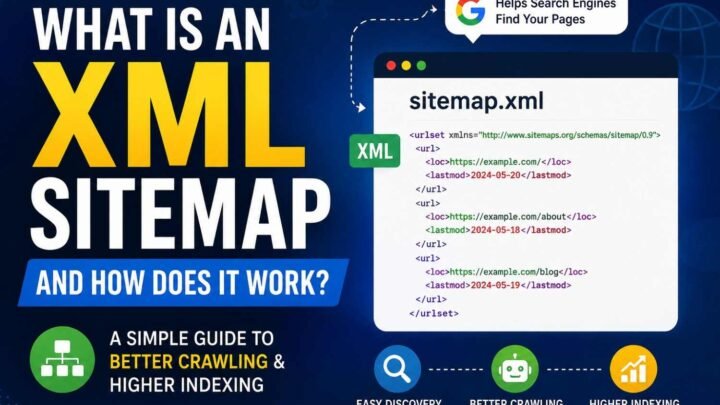
Those signals can include your canonical tag, redirects, URLs inside the XML sitemap, HTTP versus HTTPS versions, and other technical signals. Your internal linking also should stay consistent with the URL you want Google to use. During site moves, Google specifically recommends updating canonicals, internal links, redirects, and sitemaps toward the new URLs.
Think of it simple. If your canonical says A, but redirects and other setup keep pointing toward B, you are giving mixed instructions.
Why Google May Ignore Your Canonical
Google may choose another canonical when:
- internal site signals favor another URL
- sitemap keeps another version
- a redirect goes somewhere different
- canonical target has technical trouble
- two pages are not really duplicates
- CMS or plugins create wrong canonical tags
I would not fix only the tag. Check the whole path. Google itself says an indicated canonical is a preference, not a rule.
User-Declared Canonical vs Google-Selected Canonical
This part confused me first time I checked Search Console. I set one canonical URL, but Google showed another. I thought something got broken.
Not always.
User-declared canonical is the URL your website says, “This one is my preferred page.” Usually this signal comes from the canonical tag inside HTML.
Say you declare:
example.com/red-shoes
But inside Google Search Console, Google-selected canonical shows:
example.com/shoes/red
Now Google did not simply miss your tag. It may have read your canonical signal and still found stronger or mixed signals somewhere else.
Maybe your internal links mostly point to /shoes/red. Your XML sitemap may also list that URL. Redirects, duplicate page content, or other site setup can also make the picture messy.
So don’t see this mismatch and panic.
I use it like a clue.
Open Google Search Console → URL Inspection and compare User-declared canonical with Google-selected canonical. If both match, nice. If they don’t, check canonical tag, sitemap, redirects, internal links, and page similarity.
The main lesson is simple: you suggest the preferred URL, but Google makes its own final canonical choice.
Canonical vs 301 Redirect vs Noindex vs Robots.txt
I see beginners mix these four all the time. I also did this before. They look like SEO controls, so mind says maybe all doing same job. But no. One wrong choice can send Google a very different message.
| Method | Main Purpose | Can User Visit Old URL? | Best Use |
|---|---|---|---|
| Canonical | Suggest main version | Yes | Duplicate or very similar URLs |
| 301 redirect | Move URL permanently | No, user gets moved | Old URL replaced |
noindex | Keep page out of search | Yes | Page should not rank |
| robots.txt | Control crawler access | Yes | Stop or limit crawling |
Use Canonical When
Use a canonical URL when two URLs still need to work, but one should be the main version.
Say you have:
/shoes/
and
/shoes/?utm_source=email
Both open. Same main content. I would normally make the clean /shoes/ URL the preferred canonical.
Google says canonicalization is a signal, not a hard rule. Google may still select another URL if other signals disagree.
Use 301 When
Use a 301 redirect when the old page is finished and users should go to the new URL.
Old:
/best-running-shoes-2025/
New:
/best-running-shoes/
No reason keeping old one alive. Redirect it.
Google also recommends redirects during permanent URL migrations and says migration redirects should generally remain for at least one year.
Use Noindex When
Use noindex when people can still open a page, but you don’t want that page appearing in Google.
Maybe an internal search page, account page, or another low-search-value page.
Use Robots.txt When
robots.txt is different again. It manages crawling, not which duplicate URL becomes canonical.
So remember this small rule:
Duplicate → canonical. Moved → 301. Keep out of search → noindex. Control crawling → robots.txt.
Don’t swap these just because all four sound like “SEO settings.” They solve different problems.
Real Canonical URL Examples
Canonical URL become much easier when we see where the mess really starts. I seen this mostly when one useful page quietly become many URLs.
Ecommerce Filter Example
Take this category:
/mens-shoes/
Then customer clicks sorting or color:
/mens-shoes/?sort=price/mens-shoes/?color=black
Now we must not blindly canonical every filter. If ?sort=price only changes product order, the clean /mens-shoes/ may be better canonical. But black men’s shoes may have real search demand. If that filter got useful products, unique text, title, and people actually search it, maybe it deserve its own indexable page.
Product Variant Example
Same thinking for:
/shirt?size=m/shirt?size=l
If size is only buying choice and page stay almost same, I usually don’t want Google treating every size like new search page. But a truly different product variant can need separate URL. Look at user value first, not parameter alone.
Blog Tracking Example
Your article may be:
/canonical-guide/
Newsletter gives:
/canonical-guide/?utm_source=newsletter
Nothing meaningful changed. So campaign version can point canonical toward clean /canonical-guide/.
HTTP/HTTPS Example
Another old trouble is HTTP and HTTPS. If HTTPS is your real page, don’t send mixed messages.
Redirect HTTP → HTTPS.
Canonical → HTTPS.
XML sitemap → HTTPS.
Internal links → HTTPS.
One signal saying one thing and another saying something else, this is where simple SEO become confusing. Keep all roads pointing same way.
How to Set Canonical URLs in WordPress
Before touching theme code, first see what WordPress already doing. I made this mistake before. Added one canonical tag, later found SEO plugin already placed another one. Two tags, two URLs, more mess than fix.
Open your page in browser, right-click and choose View Page Source. Search:
rel="canonical"
You may see something like:
<link rel="canonical" href="https://example.com/my-post/" />Now check that destination carefully. Is HTTPS correct? Right post? Correct domain and URL format? If yes, you may need do nothing.
WordPress or SEO plugins can already create canonical URLs automatically. So never add another tag just because some SEO guide told you.
If you need custom canonical, change it through your SEO plugin or site SEO settings where possible. Then open source again. Check the real output, not only plugin screen.
Common WordPress Canonical Problem
I often see theme creates one canonical + SEO plugin creates second.
Fix is simple path:
Find both tags → locate theme/plugin making them → keep one correct canonical → clear cache → open source again → test.
That last check matters. Your setting can look correct while cached page still showing old canonical.
How to Check Canonical URLs in Google Search Console
I use Google Search Console URL Inspection when a canonical URL start acting strange. Not only for seeing report. I use it like small investigation desk.
Open URL Inspection and paste the URL you actually want Google to index. Then open the Page indexing details. Google shows the User-declared canonical and Google-selected canonical there.
Now compare both.
If both URL same, good. Your signals likely going same direction.
If different, don’t panic and quickly change canonical tag. I made this mistake before. First check:
- canonical HTML
- redirects
- XML sitemap URL
- internal links
- duplicate or near-same pages
- whether canonical target loads correctly
Google itself says it may choose another canonical even when we declare one, because technical signals or page quality can make another URL look better.
Sometimes Google’s choice is actually reasonable. So ask, “Is this selected URL really bad for my users?”
If yes, fix conflicting signals. Then test again, request indexing where useful, and give Google chance to crawl the changed pages again.
10 Common Canonical URL Mistakes
Canonical URL mistakes look small in code, but sometimes they create very messy signals for Google. I seen this type problem many times. Tag looks correct, still Google choose another page. Why? Because canonical tag is only one signal, not whole story. Google also checks things like redirects, sitemap, HTTPS and other page signals.
Here are 10 mistakes you should check:
- Canonical points to 404 page — Your preferred URL is already dead. Fix destination first.
- Canonical points through redirect — Better point direct to final working URL.
- Multiple canonical tags exist — Theme and plugin sometimes both add one.
- Canonical points to unrelated page — Two pages should be duplicate or very similar.
- Every page points to homepage — This can badly confuse page selection.
- HTTP canonical on HTTPS page — Keep protocol signals same.
- Internal links use non-canonical URLs — Your own site telling Google another story.
- Sitemap contains duplicate URLs — Sitemap should support your preferred URLs.
- Canonical target is blocked or unavailable — Google cannot comfortably use broken destination.
- CMS/plugin creates wrong canonical — Google itself warns CMS or plugin settings can produce unwanted canonical URLs.
Most canonical problems are not caused by the tag alone. They happen because different SEO signals disagree. So I never check only HTML. I check canonical, redirects, internal links and sitemap together.
Canonical URL Troubleshooting Workflow
When canonical URL problem comes, don’t start changing tags everywhere. I did this mistake before. One wrong fix can make another URL problem. Better follow same checking order each time.
Step 1: See What Google Selected
Open Google Search Console → URL Inspection. Check the Google-selected canonical first. Also see your user-declared canonical. If both URLs different, now we have clue.
Step 2: Check Your Canonical Tag
Open page source. Confirm there is only one canonical. It should point to correct absolute HTTPS URL, like:
https://example.com/page
Not broken URL. Not old URL.
Step 3: Open That Canonical URL
I always open it myself. Does it return HTTP 200? Can Google access it? Is page indexable? Check if some redirect suddenly sends you somewhere else.
Step 4: Compare Both Pages
Now ask simple question: Are these pages really same or very similar?
If content is different, forcing canonical may be wrong.
Step 5: Follow Your Internal Links
Check menus, articles, breadcrumbs and category pages. Your important links should mostly point to preferred URL.
Step 6: Check XML Sitemap
Keep preferred, indexable URLs there. Sending duplicate URLs gives mixed signal.
Step 7: Check Redirects
Redirects and canonical should tell same story.
Step 8: Fix the Pattern
If 5,000 URLs got wrong canonical, don’t edit 5,000 pages. Find theme, template, CMS or plugin causing it. Fix once.
Step 9: Verify Again
After Google recrawls pages, inspect important URLs again. Canonical troubleshooting is mostly this: find conflicting signals, make them agree, then check what Google finally selected.
Beginner Canonical URL Checklist
Canonical URL work looks small, but one wrong signal can make whole thing messy. I normally check these points before thinking page is done.
- Pick one preferred URL for the page.
- Keep only one clear
rel="canonical"tag. - Point canonical straight to final working URL, not some redirect.
- Use HTTPS everywhere.
- Keep
wwwor non-wwwsame way. - Follow one trailing-slash style.
- Make internal links go to your canonical URLs.
- Add preferred URLs inside XML sitemap.
- Avoid canonical chains like A → B → C.
- Never make loops like A → B → A.
- Do not canonical unrelated pages just because content looks little similar.
- Check ecommerce filters, sorting URLs, and tracking parameters.
- In WordPress, check theme and SEO plugin both. Sometimes two tags quietly come.
- Compare user-declared canonical vs Google-selected canonical in Search Console.
- If Google chooses another URL, don’t just change tag again. Check redirects, sitemap, internal links, page content, and duplicate versions together.
One tag alone cannot clean mixed signals. Your whole site should point same direction.
Conclusion — Think in Signals, Not Just Tags
Canonical URL is not only one HTML line and job finished. I used to think like that too. Put rel="canonical" there, then Google will obey. But SEO not working so simple.
Think full path.
Many URLs → same or similar content → pick preferred URL → align signals → Google checks → selects URL → you verify.
Your canonical tag says, “Google, I prefer this URL.” But Google still make final choice.
So check whole setup. Redirects should point right place. Internal links should use preferred URL. XML sitemap should show same URL. Page must load, be indexable, and content should truly match duplicate pages.
Then open Google Search Console and check user-declared canonical against Google-selected canonical.
Good canonical setup does not force Google. It removes mixed signals, so your preferred URL becomes easiest choice.