One small line in robots.txt can make a big mess. I have seen bloggers copy some “perfect robots.txt” from another site, paste it, then later wonder why Google stopped visiting useful pages.
The scary line is this:
Disallow: /
Put under the wrong user-agent, it can tell supported crawlers not to crawl your whole site. Bing itself warns that bad robots.txt setup can stop Bingbot reaching pages.
So, what is robots.txt? It is mainly a file that tells search crawlers which URLs they may access. Google also says clearly, robots.txt is not a proper way to keep a web page out of Google Search. A blocked URL can still appear in search if Google finds it elsewhere.
That crawling vs indexing difference matters a lot.
Does your blog need robots.txt? Maybe. But you probably need less editing than you think.
Here we will keep things safe, simple, and practical. We will separate Google and Bing behavior where needed, then connect this with your XML Sitemap Guide, Google Search Console Guide, and Technical SEO Basics.
What Is Robots.txt?
Robots.txt is one small text file, but it stand near the front door of your website. Search crawlers may look at this file before they start moving through your pages. It is part of the Robots Exclusion Protocol, which became an internet standard called RFC 9309 in 2022.
Where Robots.txt Lives
Usually you find it here:
https://example.com/robots.txt
It sits at the root level of the site. Not hidden anywhere. You can type that address in browser and see it, so yes, your visitors also can see robots.txt.
I like checking this file myself before touching any SEO setting. One wrong line can create very strange crawling problem.
If your blog also use a subdomain such as shop.example.com, that host can need its own robots.txt rules. Robots rules do not simply become one magic rule for every different host.
What Robots.txt Actually Tells Bots
A simple file may look like this:
User-agent: *
Disallow: /private-folder/
Sitemap: https://example.com/sitemap.xml
Here is what it saying.
User-agent: * means the rules target crawlers generally.
Disallow: /private-folder/ tells supported bots not to crawl URLs inside that path.
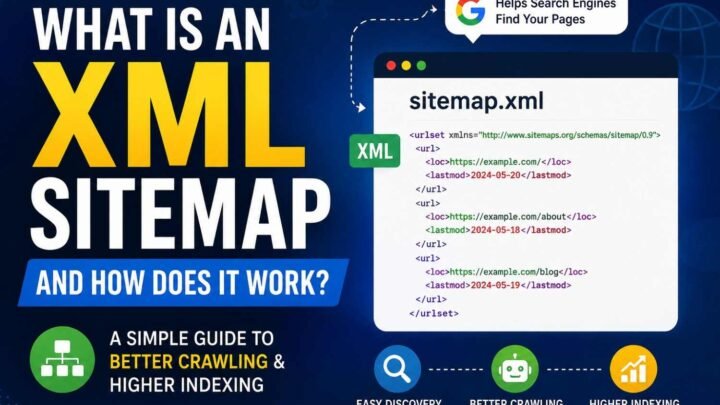
Sitemap: shows where your XML sitemap lives. Google notes that sitemap is not part of RFC 9309 itself, but major search engines support this field.
You may also see Allow: rules. Matching rules decide which path a crawler can or cannot visit.
So robots.txt is not a secret wall. It is more like instructions left for bots. Before changing it, first open your own /robots.txt and see what is already there.
Robots.txt Controls Crawling, Not Indexing
This one confusion caused me more trouble than any strange robots.txt code. I first thought, if I block page in robots.txt, Google will forget that page. Simple, I thought. But it not work like that.
Crawling vs Indexing
Think about two separate jobs.
Crawling means Googlebot or another bot come and visit your page.
Indexing means search engine may keep that page information and maybe show its URL in search results.
These two things look connected, but they are not same job.
Suppose your page is:
example.com/old-page/
And robots.txt has:
User-agent: *
Disallow: /old-page/
Now crawler is being told, “Please don’t crawl this path.”
But Google may already know this URL. Maybe another website linked it. Maybe your own menu linked there before. Maybe sitemap showed it earlier.
So you may ask, why is my blocked page still indexed?
Because Disallow does not mean noindex.
That small difference matter a lot.
Robots.txt vs Noindex
When I want page gone from search, I first ask what job I really need done.
| Goal | Better Tool |
|---|---|
| Stop crawling | robots.txt |
| Prevent indexing | noindex |
| Protect private content | password/login |
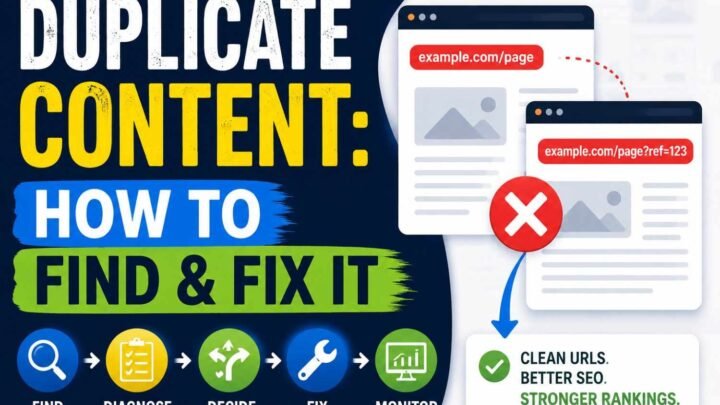
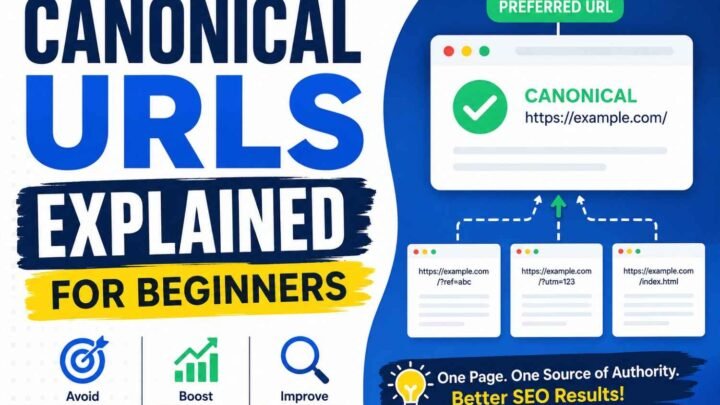
| Suggest preferred duplicate | canonical |
| Help URL discovery | XML sitemap |
A page using:
<meta name="robots" content="noindex">is giving search engine a different message: “You may visit this page, but please don’t put it in search index.”
Here another trap come. If you block that same page in robots.txt, crawler may not reach page to see its noindex instruction.
So don’t use robots.txt like removal button.
Want control crawling? Use robots.txt.
Want control indexing? Read Noindex Explained. For duplicate pages, see the Canonical Tags Guide. And if crawling and indexing still feel mixed together, go through Crawlability vs Indexability before changing any rule.
One small check before editing can save you many confusing weeks later.
Do Bloggers Actually Need to Edit Robots.txt?
I used to look at some big websites and their robots.txt was long, many rules, strange lines. Then I thought my small blog also need same. This thinking can make trouble. More robots.txt rules does not mean more SEO.
Small Blogs
If your blog has 50, 100, even few hundred useful pages, you normally don’t have some huge crawling problem. WordPress and many other CMS already give basic robots.txt behavior. Sometimes leaving it simple is better.
You may ask, does robots.txt increase rankings? Not directly. It mainly tells supported crawlers where they can or cannot crawl.
So don’t copy competitor robots.txt just because it looks advanced. Their site may have millions URLs, filters, search pages, or another setup completely.
When Editing Makes Sense
Editing becomes useful when you can see a real problem:
- Internal search URLs creating endless pages.
- URL parameters making many duplicate crawl paths.
- Very large archives.
- Crawl traps.
- Staging folders accidentally open to bots.
- A specific crawler using too much server resource.
Before adding Disallow, I ask one simple thing: What exact crawl problem does this rule solve?
If answer is not clear, I don’t add it.
For a small WordPress blog, default robots.txt can often be enough. First do a Technical SEO Audit, then think about Crawl Budget only when your site actually has a crawling issue.
Understanding Robots.txt Commands
Robots.txt looks little scary when you first open it. Small lines, strange stars, slashes everywhere. I also used to look at these commands and think one wrong slash may block half the blog. That fear is useful, because here small syntax really matter.
User-agent
You may see this first:
User-agent: *User-agent tells which crawler the rule is talking to. The * means the rules broadly apply to supported crawlers, instead of naming only one bot.
Think like you put one notice at your gate saying, “This rule for everybody.”
Disallow
Now this:
Disallow: /search/This asks matching crawlers not to crawl URLs under /search/.
For example:
example.com/search/shoes/
may match that rule.
But careful with this one:
Disallow: /That slash can mean the whole site is blocked from crawling for that user-agent. Big difference from:
Disallow:An empty Disallow does not block a path.
I always look twice before saving this part.
Allow
Sometimes you block a bigger folder but still need one file inside it.
Disallow: /wp-admin/
Allow: /wp-admin/admin-ajax.php
Here /wp-admin/ gets restricted, but admin-ajax.php gets an exception. This pattern is common around WordPress sites.
Sitemap
Then we have this simple line:
Sitemap: https://example.com/sitemap_index.xmlIt tells crawlers where your XML sitemap lives. Sitemap is not doing same work as robots.txt. Robots.txt guides crawling rules. Sitemap helps bots discover your URLs.
Wildcards and $
Rules can become more tricky.
Disallow: /*?replytocom=
Disallow: /*.pdf$
The * works like a match for more text in supported patterns. The $ marks the end of a URL pattern.
See how testing helps:
| Test URL | Rule idea |
|---|---|
/post/?replytocom=25 | May match /*?replytocom= |
/files/report.pdf | Matches /*.pdf$ |
/files/report.pdf?id=2 | $ changes the match situation |
Different crawlers can support syntax differently. So I would not make clever robots.txt rules just because they look technical. Keep them boring when possible.
If URL parameters are creating hundreds of strange crawl URLs, first study your URL Parameters SEO setup. And when syntax words become confusing, keep a Technical SEO Glossary nearby. One tested rule is better than ten copied ones.
A Safe Robots.txt Example for a Typical Blog
I do not like calling any robots.txt file perfect. Your blog is not same as my blog. Different CMS, plugins, folders, old URLs, all making small changes.
Simple Tested Example
For a normal small blog, I would first keep things quiet.
User-agent: *
Disallow:

Sitemap: https://example.com/sitemap.xml
This tested example basically says crawlers can visit the site, and here is the sitemap location. Simple. Nothing clever hiding inside.
Sometimes this is safer than copying ten Disallow lines from some “best robots.txt example” found online. If your blog have no real crawl problem, why create one?
Google also says it is fine for a site to have no robots.txt file at all in some cases, which itself tells us that more rules does not mean better SEO.
WordPress-Style Tested Example
A simple robots.txt for WordPress may look like:
User-agent: *
Disallow: /wp-admin/
Allow: /wp-admin/admin-ajax.php

Sitemap: https://example.com/sitemap_index.xml
Here /wp-admin/ gets blocked from normal crawling, while admin-ajax.php stays allowed.
But please, don’t paste this because I pasted it.
Open your own robots.txt first. Check what WordPress, your host, and SEO plugin already doing. Then check your real sitemap URL too.
I once see people blocking tags, categories, feeds, parameters, almost everything because some SEO guide showed it. Later useful pages stop getting crawled. Then they wonder what happened.
Google’s Robots Exclusion Protocol guidance supports Allow and Disallow, while sitemap declarations are also widely supported by major search engines.
So when asking, “What should robots.txt contain?”, my answer is small: only rules you understand. Your next useful check is your WordPress Technical SEO setup and Sitemap Index Guide before adding more lines.
Robots.txt for WordPress Bloggers
WordPress make many URLs by itself. Some useful. Some not much. This is where bloggers start touching robots.txt, and sometimes one small line make bigger problem than before.
/wp-admin/
By default, WordPress robots.txt tells crawlers not to crawl /wp-admin/, but it allows /wp-admin/admin-ajax.php. WordPress use that AJAX file for requests from themes and plugins, including things happening on public pages. So blocking full admin area without that exception may create unwanted trouble.
Typical WordPress rule look like:
User-agent: *
Disallow: /wp-admin/
Allow: /wp-admin/admin-ajax.php
I normally don’t add ten more admin rules just because some SEO template said so. Simple file is easier to understand later.
Categories, Tags and Author Archives
Should I block WordPress tags? Should category pages be blocked? Not automatically.
This part confuse many bloggers. A category page may be very useful when it group good articles around one topic. Yoast itself gives controls for deciding whether categories, tags and author archives should appear in search results.
If your real wish is “I don’t want this archive indexed,” then think about noindex, not just robots.txt.
I once see this kind problem again and again:
Disallow: /category/
Later blogger asking, “Why Google not visiting my category pages?”
Recovery is boring but important: remove bad rule → test one real category URL → decide if category should index or noindex → then monitor it.
Search Pages
Internal search URLs can multiply fast on bigger blogs. Hundreds or thousands combinations can appear from user searches. They often don’t need search visibility. Yoast already sets search-result pages to noindex by default.
SEO Plugins Can Change Things
Yoast can create or edit robots.txt and adds sitemap information in its generated version. Rank Math and other SEO plugins also offer robots controls.
After plugin update, theme change, migration, or SEO setting change, open:
yourdomain.com/robots.txt
Read every line. Don’t trust old memory. Your WordPress Category SEO, Tag Pages SEO, and WordPress Search SEO decisions should work together, not fight each other.
Robots.txt for Blogger / Blogspot
Blogger already doing much of robots work for you. This part many new bloggers miss. They see some “best Blogger robots.txt” code on YouTube or another blog, copy it fast, then later indexing problem comes and nobody know why.
Default vs Custom Robots.txt
Inside Blogger → Settings → Crawlers and indexing, you can turn on custom robots.txt. Blogger says this custom text replaces the default robots.txt sent to search engines.
For normal blog, I would not touch it without clear reason.
Google also says CMS platforms such as Blogger may already give settings for crawler control, so direct robots.txt editing may not be needed.
So, should I enable custom robots.txt in Blogger? Usually only when you know one exact crawl problem you need solve. Random copied template can block search pages, posts, or other useful URLs.
Blogger Custom Robot Header Tags
This setting is different.
Robots.txt controls whether crawlers may access URLs.
Custom robots header tags can control page-level search behavior, such as telling search engines not to index selected posts or pages. Blogger itself provides this under the same Crawlers and indexing area.
Before changing anything, take screenshot of current Blogger settings. I do this because later, when something breaks, we need know what was changed.
For next reading, connect this with your Blogger SEO Setup Guide and Blogger Sitemap Guide.
What Should Bloggers Usually Not Block?
When I first looked at robots.txt, my mind went one way. Block more pages, maybe Google crawl less junk, maybe site become better. But this thinking can make trouble.
Your main blog posts should stay open for crawling. Same for useful category hubs, old evergreen guides still getting value, important images, canonical URLs, and sitemap URLs. If these help people find your content, blocking them just to “save crawl budget” can do opposite work.
Images also matter. A food blog, travel blog, DIY blog — picture itself can bring search visits. So before asking “Should images be blocked?”, ask what that image doing for your page.
Why Blocking CSS and JavaScript Can Be Dangerous
CSS is not only decoration. JavaScript also not always some extra code.
Google may need CSS and JavaScript files to render and understand a page properly. Google says blocked resources or pages will not be rendered from those blocked files.
So should CSS be blocked? Should JavaScript be blocked? Usually, not when those files help build the content users actually see.
I would rather test first than make one big Disallow rule.
For deeper work, connect this part with your JavaScript SEO, Image SEO, and Rendering and SEO guides.
Why Blocking Noindex Pages Can Backfire
This one feels strange first.
You may put noindex on a page because you do not want it in Google. Then you block same page in robots.txt.
Problem is, crawler may never reach the page to read that noindex.
So can I block noindex pages? Better be careful. If Google must see the noindex instruction, give crawler access long enough to read it. Blocking first can stop that message reaching Google at all.
10 Robots.txt Mistakes Bloggers Make
Robots.txt look like tiny file. Few lines only. But one bad line can make very big mess.
I always treat this file like switch board. You don’t touch random switch just because another house using it.
Here are mistakes worth checking before you save anything.
- Using
Disallow: /without knowing it. This is biggest danger. It asks compliant crawlers not to crawl the whole site. - Copying another site’s robots.txt. Their folders, plugins, search pages, and site setup may be nothing like yours.
- Blocking pages you actually want in Google. Sometimes category, article, image, or product folders get caught by a broad rule.
- Using robots.txt instead of
noindex. They are not same job. Bing also says it must crawl a page to see itsnoindextag. - Blocking CSS or JavaScript files. Search engines may need these files to understand how your page works.
- Leaving staging rules on live website. This one can happen after redesign or migration. Old test-site block moves into production, nobody notice first day.
- Blocking URLs used in redirects. Now crawler may not reach the old URL properly, and your migration debugging become harder.
- Writing wildcards too wide.
*and$can match many URLs. One clever-looking rule can block far more than you planned. Bing supports wildcard matching, but simple rules are easier to maintain. - Keeping old sitemap address. Domain changed, HTTPS changed, sitemap path changed—but robots.txt still pointing old place.
- Changing rules without testing. This is where small mistake become traffic problem.
The Most Dangerous Rule
User-agent: *
Disallow: /
Look small. Damage can be huge.
User-agent: * targets compliant crawlers generally, and Disallow: / tells them not to crawl from the root downward. So yes, robots.txt can block your whole site from crawling.
A simple before-and-after troubleshooting case looks like this:
Before: migration goes live → staging robots.txt stays → important URLs become blocked → crawling drops.
After: remove wrong rule → check live /robots.txt → test homepage and key posts → verify sitemap → watch Search Console and Bing Webmaster Tools.
Bing itself recommends validating robots.txt for errors and keeping crawler-specific rules simple because maintenance mistakes can cause crawling problems.
Your best protection is boring one: change little, test every important URL, and never copy rules you cannot explain.
How to Test Robots.txt Safely
I never like changing robots.txt and just hoping Google understand it. One small line can block many pages. So test first, then publish.
Step 1 — Open the Live File
Go to:
yourdomain.com/robots.txt
Open it in normal browser and private window also. Google says the file should be publicly reachable, and its current guidance points site owners to the robots.txt report in Search Console for checking a live file.
Read every Disallow line slowly. If you see something like Disallow: /, stop there. That can block the whole site from crawling.
Step 2 — List Important URLs
I make a tiny list before touching anything:
- Homepage
- New blog post
- Category page
- Important image
- XML sitemap
- Main landing page
Now ask one simple thing for each URL: Should Google crawl this?
This helps because robots rules can look harmless, but one folder rule may catch many URLs.
Step 3 — Use Search Engine Tools
For Google, use URL Inspection inside Search Console. Google specifically says this tool can check whether Googlebot can access a page.
For Bing, use the robots.txt tester. It can show whether a URL is blocked, which rule blocks it, and which user-agent is affected.
Server logs go one level deeper. They show which bots actually visited, what URL they requested, and what response your server gave.
Step 4 — Monitor After Changes
Do not close the job after upload. Watch crawling, indexed pages, traffic, and Search Console inspection messages.
My simple order is:
backup → edit → test → publish → inspect → monitor
That small habit save much bigger headache later.
For the next section, a useful continuation is showing how to fix “Blocked by robots.txt” errors with real examples.
How to Fix “Blocked by Robots.txt” Problems
Seeing “Blocked by robots.txt” inside Google Search Console can feel scary. I seen this before and first thought is usually, “Google stopped my page.” But don’t edit whole robots.txt fast. One small rule may be doing all problem.
Case 1 — Important Page Is Blocked
First inspect that exact URL in Search Console. Google says the URL Inspection tool can show whether Crawl allowed? is Yes or No.
Then open your robots.txt and find which Disallow rule matches it.
Maybe you have:
Disallow: /blog/But your good articles also live inside /blog/.
Remove that rule, or make it smaller. Test the URL again. If page is important and changed, you can request indexing after fixing access. Google also says normal recrawling is automatic, so don’t expect every fix appearing same minute.
Case 2 — Indexed Though Blocked
This one confuse many bloggers.
A blocked page can still get indexed when Google discovers its URL from another page. Robots.txt stops crawling; it does not safely guarantee removal from Google.
If you want page indexed, remove the blocking rule.
If you don’t want page indexed, let Google crawl it and use proper noindex. Google warns that robots.txt can stop Google from seeing that noindex instruction.
Case 3 — Whole Site Got Blocked
Check for this dangerous line:
Disallow: /Remove it when accidental. Then inspect homepage, main posts, categories, and money pages. Watch Search Console after.
Case 4 — Sitemap Is Wrong
Sometimes robots.txt is okay, but Sitemap line still using old HTTP, domain, or path. Fix that URL and validate sitemap separately.
The useful rule I follow: find exact blocked URL → find exact rule → fix only that rule → test again.
Robots.txt and Crawl Budget
I see many small bloggers worry about crawl budget like their 200-post blog is some giant shopping site. Most time, this worry is bigger than real problem.
Google’s current crawl budget guide is mainly for very large sites. It points to sites with more than 1 million unique pages, or sites with more than 10,000 pages changing daily.
So, does robots.txt save crawl budget? Yes, it can stop crawlers visiting unwanted URL areas. But throwing many Disallow rules into robots.txt is not smart fixing.
Think this way.
A blog with 200 clean posts, good internal links, fast server, simple categories? Usually no big crawl budget problem.
A publisher having 2 million URLs, filters, search pages, tracking parameters and many URL versions? Now crawler may keep walking into places having little value.
This is where internal searches, faceted navigation and parameter URLs can create crawl waste.
Should you block tag pages to save crawl budget? Not just because somebody said so. Some tag pages may be useful. First see what value they have, how Google finds them, and whether they make thousands of weak URL paths.
For small blogs, I would fix site architecture SEO, broken links, slow hosting and messy URL structure before touching robots.txt deeply.
If your new posts already get crawled soon after publishing, Google itself says advanced crawl-budget work may not be needed.
Robots.txt vs Sitemap vs Canonical vs Noindex
These four SEO tools look close when you first see them. I also used to mix them. Robots.txt, sitemap, canonical, noindex. Same website, but very different jobs.
Think simple. Your problem decide the tool.
| Tool | Main Job | Common Blogger Mistake |
|---|---|---|
| Robots.txt | Control crawling | Using it to remove URLs |
| XML Sitemap | URL discovery | Adding bad or noncanonical URLs |
| Noindex | Prevent indexing | Blocking crawler before it sees noindex |
| Canonical | Preferred URL signal | Thinking it works like a redirect |
Robots.txt tells crawlers where they can or cannot crawl. It does not mean the blocked URL surely disappear from Google.
An XML sitemap is almost opposite feeling. You are saying, “Here are my useful URLs, please discover them.” So putting broken, duplicate, redirected, or wrong canonical URLs inside sitemap makes little sense.
Noindex is for a page you don’t want in search results. But one strange mistake happen often. Blogger blocks that page in robots.txt first. Then crawler may not reach page to read its noindex instruction.
A canonical tag helps search engines understand which similar URL you prefer. It is a signal, not some forced redirect button.
Which One Should I Use?
Say your blog has a duplicate printable page. Usually canonical it toward the main article if both versions need to exist.
Got an internal search page you don’t want in Google? Noindex can fit better than blindly blocking crawling.
A private draft? Don’t trust robots.txt. Use login or password protection.
Published one important new blog post? Put the canonical URL in your XML sitemap and link it from useful pages.
Got a URL parameter duplicate, like tracking versions of same article? Canonical can help point toward the clean main URL.
When this gets confusing, remember one line: robots.txt controls crawling, sitemap helps discovery, noindex controls indexing, canonical shows your preferred URL.
Related reading: Canonical Tags Guide → Noindex Guide → XML Sitemap Guide
Robots.txt in the AI Search Era
Search Crawlers vs AI Crawlers
Years ago I looked at robots.txt in simple way. Googlebot comes, reads pages, search happens. Now it is not that clean.
Not every bot visits your blog for same work. One may help normal search. Another may help AI answers. Another may collect public web data for model training. Google even moved its crawler docs in November 2025 because crawling now supports products beyond normal Search, including Gemini, News and Shopping.
So, don’t mix all crawler rules together.
| Checked August 2026 | User-agent | Main use |
|---|---|---|
| OpenAI | OAI-SearchBot | ChatGPT search discovery |
| Anthropic | ClaudeBot | Public web data used for training |
OpenAI says pages blocked from OAI-SearchBot may not be included in ChatGPT summaries and snippets. Anthropic also says ClaudeBot follows robots.txt instructions while collecting public web training data.
Should Bloggers Block AI Crawlers?
There is no clean yes for everyone.
You may want more discovery and links from AI search. Then blocking search-related crawlers can work against that goal. But maybe your concern is content licensing, server load, copying, or how your writing gets used. Then your choice can be different.
Ask first: what I actually want from this bot?
That small question saves many bad robots.txt edits.
Keep AI Rules Separate
I prefer separate crawler blocks. Write beside your records why you allowed or blocked each one, when you changed it, and official source you checked.
Review it again later. Bot names and uses can change.
For deeper setup, connect this with your AI SEO Guide, AI Crawlers Explained, and Search vs AI Discovery pages.
A 5-Minute Robots.txt Audit for Bloggers
I do this small robots.txt audit before touching any rule. Five minutes can save many ugly SEO problems later.
Check 1 — Can You Open /robots.txt?
Type yourdomain.com/robots.txt in browser. If it opens, read it slowly. Don’t see lines and think all technical stuff is correct.
Check 2 — Is Disallow: / Present?
Look for this:
Disallow: /
Be careful here. This rule can tell supported crawlers not to crawl your whole site. I always check this first.
Check 3 — Are Important Content Folders Blocked?
Check your blog posts, categories, images, and other useful pages. One wide Disallow rule can catch URLs you never planned to block.
Check 4 — Is Sitemap URL Correct?
Open the sitemap URL written inside robots.txt. Old domain, wrong HTTPS, or deleted sitemap path is easy to miss.
Check 5 — Do Important Pages Pass Crawl Tests?
Test homepage, one new post, one old post, category page, and important landing page using your search engine tools.
Check 6 — Are Old Staging Rules Present?
This one hurts after site migration. A staging block sometimes travels into live website.
Check 7 — Can You Explain Every Custom Rule?
I use one simple rule: if I cannot tell why a Disallow line exists, I investigate before keeping it.
Save screenshots before and after changes. You can also use this with your Technical SEO Checklist and full Blog SEO Audit, so next time you are not guessing.
Robots.txt FAQ
Does robots.txt improve SEO?
Not directly. Robots.txt is more like a gate for crawlers. It tell them where they can go and where they should not. I would not expect ranking jump just because I edited this file. Bad edit, though, can create a real mess.
Can robots.txt stop Google indexing a page?
Not safely. This confused me also first time.
If you block crawling, Google may still know that URL from links somewhere else. For removing a page from Google Search, noindex is usually the proper tool. Google also says crawler must access the page to see that noindex rule.
Can robots.txt protect private pages?
No. Please don’t use it like a lock.
Robots.txt is public. Anybody can open it. If your page has private data, member files, test pages, or client stuff, use login, password, or proper server access control.
Should I put my sitemap in robots.txt?
Yes, you can. It gives crawlers another easy place to find your sitemap. Still, sitemap and robots.txt doing two different jobs. One helps discovery. Other controls crawling.
Should I block tag pages?
Not automatically. Some tag pages are useless, yes. Some actually help people find related posts. First ask: Do I want this page indexed? Then choose correct tool. Don’t just copy somebody’s Disallow.
Should I block /wp-admin/?
It is common on WordPress sites. But check your own setup. A copied robots.txt from random blog may contain rules your site never needed.
Does Google support crawl-delay?
Don’t depend on crawl-delay for Googlebot. Google’s current robots.txt documentation says fields outside its supported list are not supported.
Is robots.txt case-sensitive?
URL paths can be case-sensitive. /Images/ and /images/ may not mean same path on your server. So I always match the real URL exactly.
What happens if robots.txt does not exist?
Usually nothing dramatic. Google says it is fine to have no robots.txt file, provided a missing file correctly returns HTTP 404.
How often should I change robots.txt?
Rarely.
Change it when you have one clear crawling problem to solve. Not because some SEO checklist told you robots.txt need “optimization.” Simple file is often safer file.
Conclusion — Keep Robots.txt Simple
A good robots.txt file is usually boring. And that is fine.
I used to look at long robots.txt files and think, maybe this site doing some smart SEO thing. But more rules not mean better SEO. One wrong Disallow can make a useful page hard for search bots to reach.
Your job is simple. Let Google and other search engines crawl the pages people should find. Block crawl paths only when you got a real reason.
Keep this small map in mind:
- Need to stop crawling? → robots.txt
- Need to stop indexing? → noindex
- Need URL discovery? → sitemap
- Need duplicate control? → canonical
- Need privacy? → authentication
Do not use robots.txt like a wall for everything.
When you see a rule, ask: Why is this here?
If you cannot answer that, check it before keeping it. The best robots.txt is not longest. Every line just got a job.

Leave a Reply