Old iCloud backups can consume several gigabytes of storage and trigger “iCloud Storage Full” alerts. This guide explains how to delete old backups on iCloud, what happens after deletion, whether your photos remain safe, and the quickest ways to free up storage on your iPhone or iPad.
Quick Overview
| Question | Answer |
|---|---|
| Can you delete old iCloud backups? | Yes. |
| Will deleting a backup erase your iPhone? | No. |
| Will you lose photos? | Usually no, if they are stored in iCloud Photos or still on your device. |
| Does deleting a backup free storage? | Yes, immediately. |
| Can you create another backup later? | Yes, anytime. |
Why Delete Old iCloud Backups?
Every device backed up to iCloud creates its own backup. When you replace an iPhone or iPad, older backups often remain in your account until you remove them.
Deleting unused backups helps you:
- Free iCloud storage.
- Fix failed backups.
- Remove backups from devices you no longer own.
- Delay or avoid upgrading your iCloud+ storage plan.
Apple provides 5 GB of free iCloud storage, which fills quickly with photos, videos, and device backups.
Read Also: how to connect projector to laptop steps.
How to Delete Old Backups on iCloud on iPhone
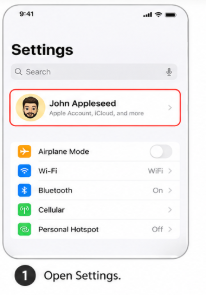
- Open Settings.
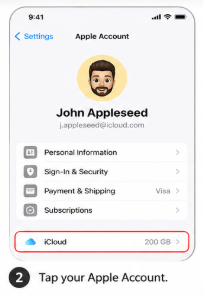
2. Tap your Apple Account.
3. Tap iCloud.
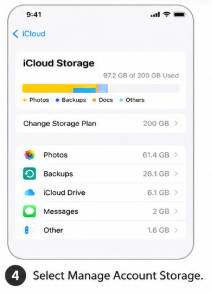
4. Select Manage Account Storage.
5. Tap Backups.
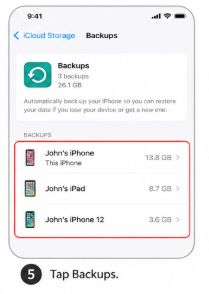
6. Choose the old device backup.
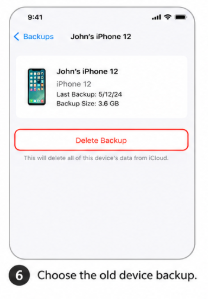
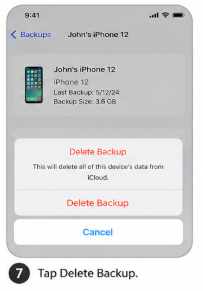
7. Tap Delete Backup.
8. Confirm Turn Off & Delete.
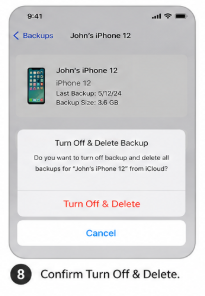
The storage becomes available almost immediately.
How to Delete Old Backups on iCloud on iPad
The steps are almost identical:
- Open Settings.
- Tap your Apple Account.
- Open iCloud.
- Tap Manage Account Storage.
- Select Backups.
- Choose the unused backup.
- Tap Delete Backup.
On Mac
- Click the Apple menu and open System Settings.
- Click your name at the top of the sidebar.
- Click iCloud, then click Manage.
- Select Backups from the list.
- Select the old backup and click the remove button (the minus icon) to delete it.
Can You Delete Old iCloud Backups Without an iPhone?
Yes.
You can remove backups using:
- iPad
- Mac
- Windows PC with iCloud for Windows
- Any Apple device signed in with the same Apple Account
You do not need the original iPhone to delete its backup.
iCloud Backup vs Local iPhone Backup
Many users confuse these two backup types.
| Backup Type | Stored On | Deleted From |
|---|---|---|
| iCloud Backup | iCloud | iPhone, iPad, Mac |
| Computer Backup | Mac or Windows PC | Finder or iTunes |
Deleting one does not affect the other.
If I Delete iCloud Backup, Will I Lose Everything?
No.
Deleting an iCloud backup removes only the saved backup file used for restoring a device.
You do not lose:
- Current apps
- Contacts syncing with iCloud
- Calendar data
- Notes syncing with iCloud
- Photos stored in iCloud Photos
- Files already saved on your device or elsewhere
You simply lose the ability to restore from that deleted backup.
Do you want to recall your childhood old TV in 1970, here it is.
If I Delete Old iPhone Backup, Will I Lose Photos?
Usually, no.
| Where Photos Are Stored | Result |
|---|---|
| iCloud Photos | Safe unless you delete the photos themselves |
| On your current iPhone | Safe |
| Only inside the deleted backup | Permanently lost |
If you are unsure, verify your photos are synced or copied elsewhere before deleting any backup.
How to Delete iCloud Storage on iPhone
If backups are not the main storage user, check:
- Photos and videos
- Messages
- iCloud Drive files
- Voice Memos
- App data
Go to:
Settings → Apple Account → iCloud → Manage Account Storage
Apple lists storage usage from largest to smallest, making cleanup faster.
How to Delete Photos From iCloud Storage
Photos usually consume the most iCloud space.
To reduce storage:
- Delete unwanted photos and videos.
- Open Recently Deleted.
- Permanently remove those items.
Important: If iCloud Photos is enabled, deleting a photo removes it from every synced Apple device.
Read Also, Is iPhone 18 coming in 2026.
What Uses the Most iCloud Storage?
| Data | Typical Size |
|---|---|
| Photos & Videos | 10–200 GB+ |
| Device Backup | 3–30 GB |
| Messages | 1–20 GB |
| iCloud Drive Files | Varies |
| Mail Attachments | Varies |
For most users, photos and videos occupy the largest share of storage.
Best Practices Before Deleting Backups
Before removing any backup:
- Confirm the device is no longer used.
- Keep at least one recent backup.
- Verify important photos are safely stored.
- Export important files if necessary.
- Create a fresh backup before deleting the old one.
Common Mistakes
Avoid these common errors:
- Deleting the only backup before replacing your iPhone.
- Confusing iCloud Backup with iCloud Photos.
- Forgetting to empty Recently Deleted.
- Removing backups for devices still in use.
Quick Facts
| Fact | Detail |
|---|---|
| Free iCloud storage | 5 GB |
| Typical iPhone backup | 5–20 GB |
| 10,000 photos | Around 20–40 GB (varies by format and resolution) |
| Backup deletion | Permanent |
| Storage freed | Usually immediate |
Frequently Asked Questions
Is it possible to delete old iCloud backups?
Yes. Open Settings → Apple Account → iCloud → Backups and delete the unused backup.
Is it okay to delete old backups?
Yes, if you no longer need to restore that device.
How do I clean up my iCloud backups?
Delete old device backups and unnecessary app backup data.
How many backups does iCloud keep?
iCloud keeps the latest backup for each device. Older backups from previous devices remain until you delete them.
Does iCloud keep older backups?
Yes. Old device backups stay in your account until removed manually.
What is the fastest way to clean up iCloud storage?
Delete unused backups, large videos, duplicate photos, and unnecessary files.
How to clean up old iPhone backups?
Open Backups, select each unused device, and tap Delete Backup.
Will I lose my photos if I delete my iCloud backup?
No, provided your photos are stored in iCloud Photos or remain on your device.
Why are my iCloud backups so large?
Photos, videos, Messages, and app data are usually the biggest contributors.
Are iCloud Backups permanently deleted?
Yes. Once deleted, they cannot be recovered.
How do I free up space for iCloud backup?
Delete old backups, large files, unwanted photos, or upgrade your iCloud+ storage.
How long does a 100 GB iCloud backup take?
Anywhere from 2 to 24 hours, depending mainly on your internet upload speed.
Should you delete old backups from iCloud?
Yes, if the devices are no longer in use.
What is the 3-2-1 backup rule?
Keep 3 copies of your data on 2 different storage media, with 1 copy stored off-site.
Is 50 GB of iCloud enough for a month?
Yes for many users, but frequent photo and video backups often require 200 GB or more.
How do I delete previous multiple backups in iPhone iCloud?
Delete each device backup individually from the Backups section.
How many GB do 10,000 photos take up?
Typically 20–40 GB, depending on image quality and format.
How long are backups stored in iCloud?
Until you delete them or remove the associated Apple Account.
Why is my iCloud storage full after deleting everything?
Old backups, iCloud Drive files, Messages, or items in Recently Deleted may still occupy storage.
How do I clear junk from iCloud?
Remove old backups, duplicate photos, unwanted files, and empty Recently Deleted folders.
How much is 200 GB of iCloud a month?
Pricing varies by country. Check Apple’s latest iCloud+ pricing for your region.
Conclusion
Knowing how to delete old backups on iCloud helps you recover storage without affecting your current data. Before deleting any backup, confirm you no longer need it for restoration and keep at least one recent backup of your active device. If storage remains full, review photos, videos, Messages, and iCloud Drive files, as they are usually the largest storage users.




Leave a Reply