If you’re trying to find the best browser in 2026, chances are you’ve already heard about Google Chrome. It’s been around for years, yet millions of people still use it every day. That says a lot in a world where new browsers keep showing up and promising something better.
I’ve tried plenty of browsers over the years. Some focused on privacy, others on speed, and a few packed in extra features that looked impressive at first. But when it came to everyday browsing, work, streaming, online shopping, and managing multiple accounts, I often found myself coming back to Chrome. It just works without making things complicated.
One of the biggest reasons people search for a Google Chrome download is simple: they want a browser that’s fast, reliable, and easy to use. Whether you’re opening dozens of tabs, watching videos, using web apps, or syncing bookmarks across devices, Chrome handles it surprisingly well.
So, is Google Chrome still worth using in 2026? For many people, the answer is yes. It’s still one of the fastest and most feature-rich browsers available today. In this guide, we’ll look at what makes the Chrome browser so popular, how it protects your data, what new features it offers, and whether it’s still the right choice compared to other browsers.
What Is Google Chrome?
If you’ve ever searched for something online, watched videos on YouTube, or checked your Gmail, chances are you’ve used Google Chrome at some point. But what is Google Chrome exactly?
Google Chrome is a web browser created by Google. It was first released in 2008 and quickly became one of the most popular browsers in the world. The reason is pretty simple—it works well, it’s easy to use, and it usually doesn’t get in your way when you’re trying to get things done online.
The Chrome browser is built on an open-source project called Chromium. Without getting too technical, Chromium is the foundation that helps Chrome run smoothly. Google adds extra features, security tools, and regular updates to make the browser even better for everyday users.
One thing that stands out about Chrome is how widely it’s used. Millions of people open it every day on their computers, phones, and tablets. Whether you’re a student researching for an assignment, a professional working remotely, or someone just browsing social media, Chrome fits almost every type of user.
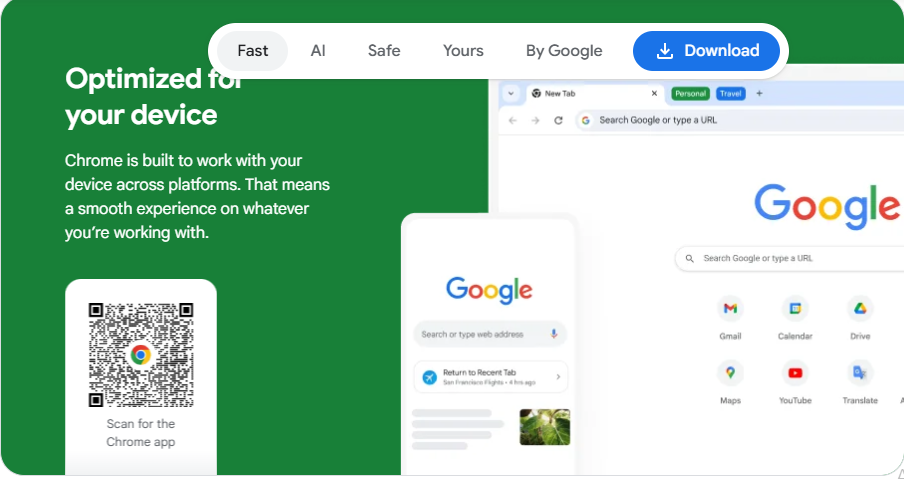
Another reason why Google Chrome is so popular is that it works across different operating systems. You can install it on Windows, macOS, Linux, Android, and even iPhones and iPads. If you’re signed in with your Google account, your bookmarks, passwords, and browsing history can follow you from one device to another, which is honestly pretty convenient.
For many people, Google Chrome isn’t just another browser. It’s the browser they use every single day without even thinking about it.
Why Should You Download Google Chrome in 2026?
If you’re wondering why download Chrome when there are so many browsers available today, the simple answer is this: it just works. That’s one of the biggest reasons millions of people still use it every day.
I’ve tried different browsers over the years. Some looked great, some promised better privacy, and others claimed to be faster. But I always found myself coming back to Chrome because it feels familiar, stable, and easy to use. You open it, sign in, and everything is right where you expect it to be.
One of the biggest benefits of Google Chrome is compatibility. Almost every website, web app, and online tool is built with Chrome users in mind. Whether you’re checking email, attending an online meeting, watching videos, or using business software, things usually run smoothly without strange errors or broken pages.
Another reason Chrome is so popular is how well it connects with other Google services. If you use Gmail, Google Drive, Google Docs, YouTube, or Google Photos, everything feels connected. Your bookmarks, passwords, browsing history, and settings can follow you from your laptop to your phone in seconds.
Chrome also gets regular updates. Most people don’t even notice them because they happen quietly in the background. That’s a good thing. It means you’re getting new features, bug fixes, and security improvements without having to think about it.
Then there’s the extension library. Honestly, this is where Chrome shines. Need an ad blocker? A grammar checker? A screenshot tool? A password manager? You’ll probably find several good options in the Chrome Web Store.
So, is Chrome better than Edge or other browsers? That depends on what matters most to you. But if you’re looking for a browser that’s reliable, easy to use, packed with features, and supported by almost every website on the internet, Chrome is still one of the strongest choices and easily remains a contender for the best browser in 2026.
How to Download Google Chrome
Getting Google Chrome on your device only takes a few minutes. The safest way is to download it directly from the official Google Chrome website.
Download Google Chrome on Windows or Mac
- Open your current browser, such as Microsoft Edge on Windows or Safari on Mac.
- Visit the official Google Chrome website.
- Click the Download Chrome button.
- If you don’t want to share anonymous usage data with Google, simply uncheck the optional box before continuing.
- Once the file finishes downloading, open it:
- ChromeSetup.exe on Windows
- googlechrome.dmg on Mac
- Follow the installation steps shown on your screen, and Chrome will be ready to use in a few moments.
Install Google Chrome on Android
- Open the Google Play Store.
- Search for Google Chrome.
- Tap Install and wait for the app to download.
Install Google Chrome on iPhone or iPad
- Open the App Store.
- Search for Google Chrome.
- Tap Get and follow the prompts to complete the installation.
Once installed, you can open Chrome, sign in with your Google account if you want to sync your bookmarks and passwords, and start browsing right away.
Most Advanced Features of Google Chrome
When people talk about Chrome features, they usually mention speed first. And yes, Chrome is fast. But that’s honestly just one small part of the story. What keeps millions of people using Google Chrome every day is the collection of tools that make browsing feel easier, smoother, and less frustrating.
Whether you’re working, studying, shopping online, or just watching videos, Chrome has a lot going on behind the scenes that makes everyday browsing feel effortless.
Built-In AI Features
One of the newer Google Chrome AI features is the way the browser helps you find things faster and work more efficiently. Chrome can organize tabs, improve search suggestions, and help you find information without making you jump through multiple websites.
If you’re someone who regularly ends up with twenty or thirty tabs open (most of us have been there), some of these AI-powered tools can actually save time. They aren’t flashy, but they make browsing feel smarter.
Chrome Sync Across Devices
This is probably one of the features I appreciate the most.
You can start reading something on your laptop, pick up your phone later, and continue right where you left off. Chrome sync keeps your bookmarks, passwords, browsing history, and settings connected across devices.
For people who switch between work and personal devices throughout the day, that synchronization makes life much easier.
Password Manager
Remembering dozens of passwords isn’t realistic anymore.
Chrome’s built-in Password Manager stores your login details securely and can autofill them when needed. It also alerts you if a saved password appears in a known data breach. That’s a small feature that can make a big difference when it comes to online security.
Google Translate
We’ve all landed on websites written in a language we don’t understand.
Chrome can automatically offer translations with a single click. Instead of copying text into another tool, you can read the page instantly. It feels simple, but it’s incredibly useful when researching information from international websites.
Tab Groups & Productivity Tools
Modern browsing can get messy fast.
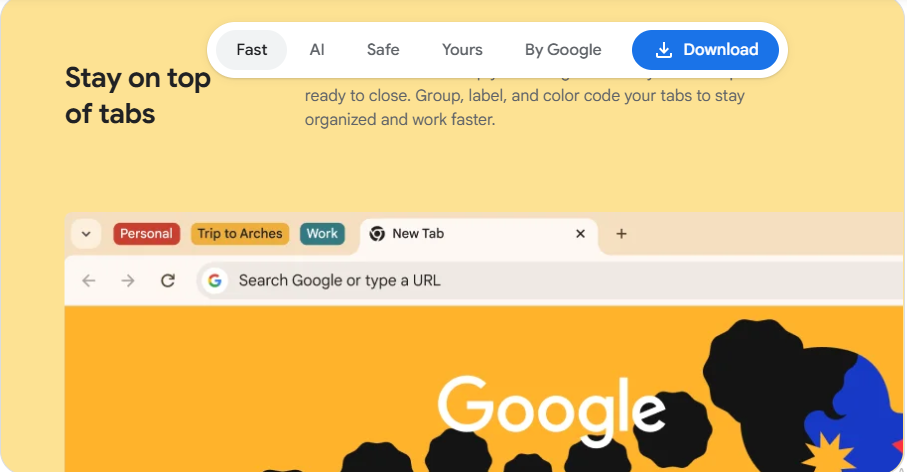
Chrome lets you create Tab Groups so related pages stay organized. For example, you can keep work projects, travel plans, and personal research separated instead of having everything mixed together.
Small browser productivity features like this help reduce clutter and make it easier to focus.
Extension Ecosystem
What really makes Chrome unique is its huge library of Chrome extensions.
Need an ad blocker? There’s one. A grammar checker? Plenty of options. Password managers, note-taking tools, screenshot apps, SEO tools, VPNs, productivity trackers—you can customize Chrome to fit the way you work.
That’s one reason many people still consider Chrome the best browser in 2026. It doesn’t just help you browse the web. It adapts to how you use the web.
How Google Chrome Keeps You Secure
One of the biggest reasons people continue to use Google Chrome is security. When you’re browsing the web, opening emails, downloading files, or logging into your bank account, you want a browser that helps protect your information without making things complicated.
So, is Google Chrome safe? For most users, the answer is yes. Chrome comes with several built-in security tools that work quietly in the background. You don’t have to be a tech expert to benefit from them. Most of the protection is turned on automatically.
Enhanced Safe Browsing
Google’s Enhanced Safe Browsing feature adds an extra layer of protection against dangerous websites, phishing scams, and suspicious downloads. If Chrome notices that a site might be trying to steal your passwords or personal details, it can warn you before you continue.
Honestly, that’s a feature many people don’t think about until it saves them from clicking something they shouldn’t have.
Security Updates
One thing Google does really well is keeping Chrome updated. Security threats change all the time, so browsers need regular fixes.
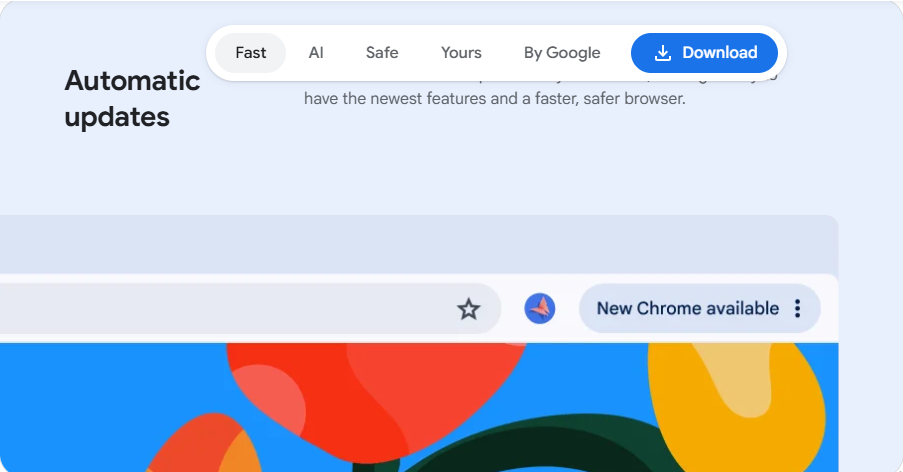
Chrome receives security updates frequently, often every few weeks, and critical issues can be patched even faster when needed. The nice part is that updates usually happen automatically, so you don’t have to remember to install them yourself.
Sandboxing Technology
This sounds technical, but the idea is simple.
Chrome uses something called sandboxing. Think of it as putting each browser tab into its own locked room. If a malicious website manages to cause problems in one tab, it’s much harder for that threat to spread to the rest of your device.
It’s one of the reasons Chrome has built a strong reputation for browser security over the years.
Password Breach Alerts
Most of us have more online accounts than we’d like to admit. Remembering unique passwords for every site isn’t easy.
Chrome can notify you if one of your saved passwords appears in a known data breach. That warning gives you a chance to change your password before someone else tries to use it.
It’s a simple feature, but it can prevent a lot of headaches later.
HTTPS Protection
Whenever possible, Chrome prefers secure HTTPS connections. You’ll usually see a small padlock or security indicator in the address bar when a website uses encryption.
This helps protect information such as passwords, payment details, and personal messages while they’re being sent between your device and the website.
Chrome Security Statistics
Google reports that Safe Browsing helps protect billions of devices every day from phishing attacks, malware, and other online threats. Chrome’s security team also releases regular security fixes throughout the year, with updates often arriving every few weeks to address newly discovered vulnerabilities.
No browser can promise 100% protection, and that’s just reality. But when you combine Safe Browsing, frequent updates, password breach alerts, sandboxing, and HTTPS protection, it’s easy to see why many people consider Google Chrome one of the most secure browsers available in 2026.
How Fast Is Google Chrome?
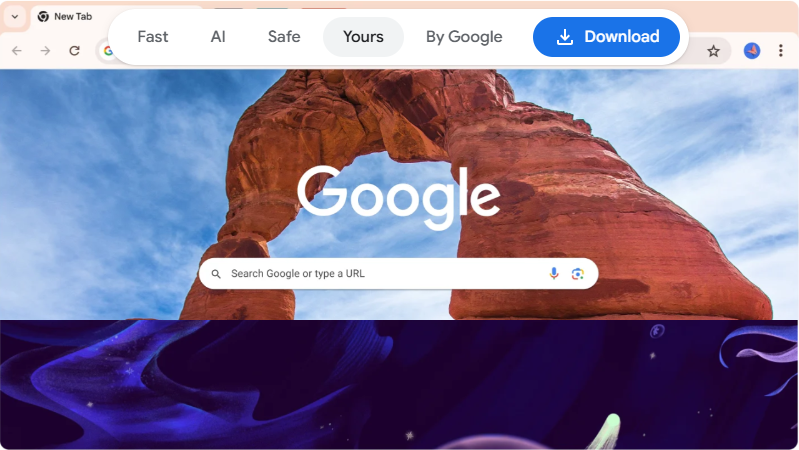
One of the biggest reasons people download Chrome is simple: it’s fast.
If you’ve ever switched from an older browser, you’ve probably noticed the difference right away. Websites open quickly, pages respond faster, and things just feel smoother. That’s not marketing talk either. In everyday use, Chrome does a really good job of handling modern websites that are packed with videos, animations, and interactive features.
A lot of Chrome’s speed comes from its strong JavaScript performance. That might sound technical, but it affects almost everything you do online. Whether you’re checking Gmail, using Google Docs, watching YouTube, or working inside web-based apps, Chrome processes those tasks very quickly. That’s one reason many people still ask, “Is Chrome the fastest browser?” For most users, it’s definitely among the fastest options available.
Page loading speed is another area where Chrome performs well. Websites often load in just a few seconds, even when they contain large images or dynamic content. On a decent internet connection, the browsing experience feels smooth and responsive.
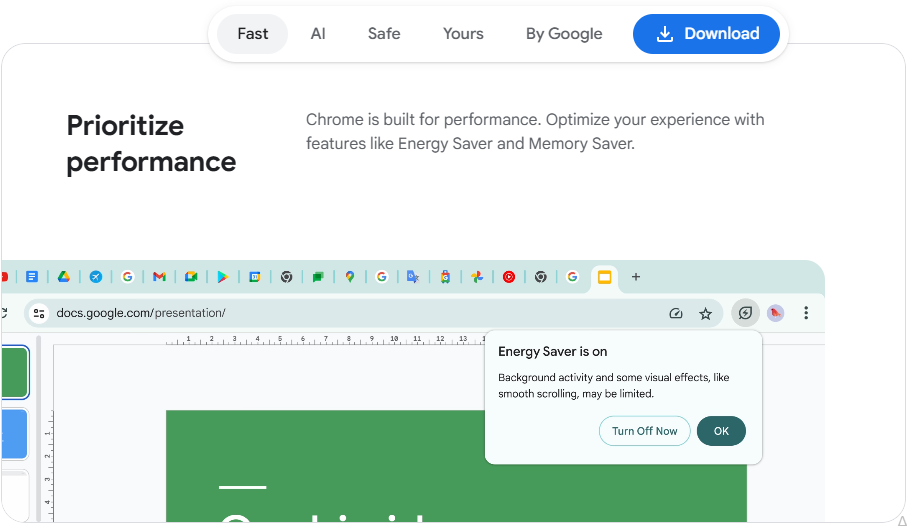
Chrome has also improved its resource management over the years. Older versions were known for using a lot of RAM, and honestly, that criticism wasn’t completely unfair. Today, Chrome does a much better job of managing tabs and reducing unnecessary memory usage, especially when inactive tabs are sitting in the background.
Startup performance is solid too. Click the Chrome icon, and you’re usually browsing within seconds.
In a typical Chrome vs Firefox speed test, the results can vary depending on the device and website. Still, Chrome consistently delivers fast browser performance, which is why millions of people continue using it every day.
Why Google Chrome Is Better Than Other Browsers
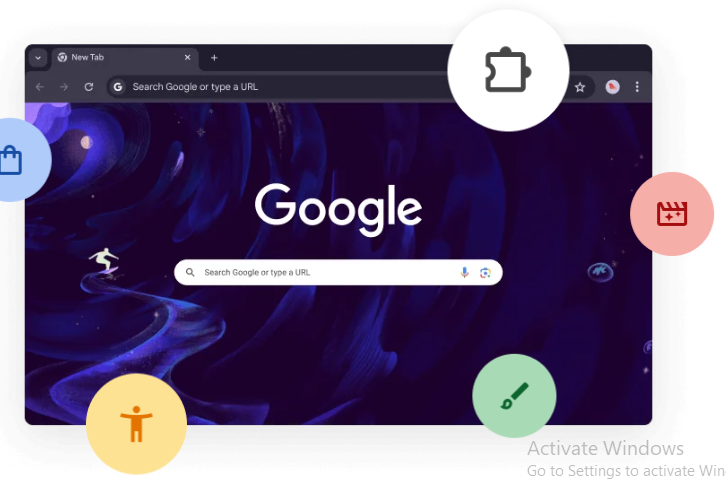
If you’ve ever searched for a Chrome vs Edge comparison or wondered whether another browser is better, you’re definitely not alone. There are plenty of good browsers out there in 2026. Microsoft Edge, Firefox, and Safari all have their strengths. Still, Google Chrome remains the browser that millions of people open first thing every day.
One big reason is compatibility. Almost every website, web app, and online tool is designed to work perfectly with Chrome. Whether you’re checking emails, attending Zoom meetings, editing documents, or using web-based software for work, Chrome usually just works. You don’t have to spend time fixing strange display issues or searching for browser-specific solutions.
When people compare Chrome vs Edge, the differences can seem small at first. Edge is fast and uses the same Chromium foundation as Chrome. But Chrome still has the advantage when it comes to extension support, syncing across devices, and integration with Google services like Gmail, Google Drive, Docs, and Photos. If you’re already using Google’s ecosystem, Chrome feels seamless.
The Chrome vs Firefox debate is a little different. Firefox has built a loyal following because of its privacy features and independent browser engine. That’s great if privacy is your top concern. However, Chrome often delivers a smoother experience for everyday users, especially those who rely on browser extensions and modern web applications.
Safari performs extremely well on Apple devices and helps preserve battery life on MacBooks. The downside is that it’s mainly designed for Apple’s ecosystem. If you regularly switch between Windows, Android, Mac, and other devices, Chrome gives you much more flexibility.
Quick Browser Comparison
| Feature | Chrome | Edge | Firefox | Safari |
|---|---|---|---|---|
| Speed | ✓ | ✓ | ✓ | ✓ |
| Extensions | ✓ Extensive Library | ✓ Good Support | ✓ Good Support | Limited |
| Security | ✓ | ✓ | ✓ | ✓ |
| Cross-Platform Support | ✓ Excellent | ✓ Excellent | ✓ Excellent | Limited |
| Google Service Integration | ✓ Best | Good | Limited | Limited |
At the end of the day, the “best” browser depends on what matters most to you. But if you’re looking for a balance of speed, security, extensions, device syncing, and overall reliability, Chrome is still one of the strongest choices available. That’s exactly why it continues to rank highly in almost every major browser comparison and browser benchmark test.
Google Chrome Download Options
Getting started with Google Chrome is pretty simple. Whether you’re using a Windows PC, a Mac, or even an older computer, Chrome is available for almost every major platform. The best part is that the installation usually takes only a few minutes.
If you’re wondering how to download Chrome, install it, or update it to the latest version, this guide will point you in the right direction.
Google Chrome Download for PC
If you’re looking for a Google Chrome download for PC, the process is straightforward. Visit the official Chrome website, download the installer, and run the setup file. Chrome automatically handles most of the work for you.
I’ve installed Chrome on dozens of computers over the years, and honestly, it’s one of the easiest programs to set up. Even if you’re not very tech-savvy, you probably won’t run into any trouble.
Google Chrome Download for Windows 10
Many people still use Windows 10 every day, and Chrome works exceptionally well on it. To get a Google Chrome download for Windows 10, simply download the installer from Google’s official page and follow the on-screen instructions.
Once installed, Chrome can import bookmarks, saved passwords, and browsing history from other browsers, which saves a surprising amount of time.
Google Chrome Download for Windows 11
The Google Chrome download for Windows 11 follows the same simple process. Chrome is fully optimized for Microsoft’s latest operating system and works smoothly right out of the box.
If you’ve recently bought a new laptop or desktop, installing Chrome is often one of the first things many users do after setting up Windows 11.
Google Chrome Download Mac
Mac users can also install Chrome in just a few clicks. After downloading the installation file, drag Chrome into the Applications folder, and you’re ready to go.
A lot of Mac owners use Chrome because it syncs perfectly with their Google accounts, making it easy to access bookmarks, passwords, and open tabs across devices.
Chrome Download for Windows 7
Although Windows 7 is no longer officially supported by Microsoft, some users still search for a Chrome download for Windows 7. Older Chrome versions may still run on compatible systems, but using an unsupported operating system can expose your computer to security risks.
If possible, upgrading to a newer version of Windows is usually the safer choice.
Google Chrome Latest Version
Using the Chrome latest version is always recommended. Google releases updates regularly to improve security, fix bugs, and add new features.
The good news is that Chrome updates itself automatically in the background. Most people never even notice it’s happening. If you want to check for updates manually, open Chrome, click the three-dot menu, go to Help, and select About Google Chrome. Chrome will automatically search for and install available updates.
Advanced Installation Options
Most people download Chrome and install it in a few clicks. That’s usually enough. But there are times when you need a little more flexibility, especially if you’re setting up multiple computers, working in an office environment, or installing Chrome on a system without internet access.
The good thing is that Google offers several installation options for different situations. Once you know which one fits your needs, the process becomes much easier.
Google Chrome Offline Installer
A lot of people ask, “How do I install Chrome offline?”
The answer is simple: use the Google Chrome offline installer. Unlike the regular installer, which downloads files during setup, the offline installer already contains everything needed to install Chrome.
This comes in handy when your internet connection is slow or unstable. I’ve also seen people use it when setting up a new PC and they don’t want to download the same files over and over again.
The offline installer is especially useful for technicians, students, and anyone managing more than one computer. Just download it once, save it to a USB drive, and use it whenever needed.
Chrome Enterprise Download
If you’re managing computers in a company, school, or organization, the standard Chrome installer may not be the best choice.
That’s where Chrome Enterprise download becomes useful.
Chrome Enterprise gives IT teams more control over browser settings, updates, security policies, and user management. Instead of configuring every computer one by one, administrators can deploy Chrome across many devices at the same time.
For businesses with dozens or even hundreds of employees, this can save a surprising amount of time and effort.
Chrome MSI Installer
Many Windows users come across the term “Chrome MSI” and wonder what it actually means.
A Chrome MSI installer is a special installation package designed mainly for business environments. MSI stands for Microsoft Installer, and it works well with Windows deployment tools.
In simple terms, it allows IT administrators to install Chrome silently across multiple computers without requiring users to click through installation screens. If you’re setting up a large number of Windows systems, Chrome MSI can make the job much smoother.
Install Chrome Browser on Ubuntu
Chrome isn’t only for Windows and Mac users. You can also install Chrome browser on Ubuntu in just a few minutes.
After downloading the Linux installation package from Google’s official website, open the downloaded file and follow the installation prompts. Ubuntu will handle most of the work automatically.
Many developers and Linux users prefer Chrome because it offers excellent web compatibility, browser syncing, and access to the same extensions available on Windows and Mac.
If you regularly switch between operating systems, having Chrome installed on Ubuntu helps keep your bookmarks, passwords, and browsing history available everywhere.
Additional Chrome Tools and Apps
Most people know Google Chrome as a web browser, but there are a few extra tools and apps that can make life a lot easier. Whether you’re using a Windows PC, a Mac, or an Android phone, Chrome offers more than just a way to browse websites.
Chrome App Download
If you’re searching for a Chrome app download, the easiest option is to get it directly from Google’s official website or your device’s app store. Once installed, Chrome syncs your bookmarks, passwords, browsing history, and settings across all your devices.
I’ve always found this feature handy. You can save a page on your laptop and open it later on your phone without doing anything extra. It just works.
Chrome APK for Android
Many Android users ask, “Where can I download Chrome APK?” A Chrome APK is simply the installation file for Android devices. People usually download it when they want to install Chrome manually or update it outside of the Google Play Store.
If you decide to use a Chrome APK, make sure you download it from a trusted source. Installing APK files from unknown websites can expose your device to security risks.
Chrome Remote Desktop Download
One of Chrome’s most useful tools is Chrome Remote Desktop. After a quick Chrome Remote Desktop download, you can securely access your computer from another device.
For example, if you forget an important file on your office computer, you can connect to it from home and access what you need. It’s surprisingly simple to set up and can save a lot of frustration.
Open Chrome
New users often ask, “How do I open Chrome?” After installation, just click the Chrome icon on your desktop, taskbar, applications folder, or mobile home screen. The browser launches in seconds, and you’re ready to start browsing.
If Chrome isn’t opening, a quick restart of your device or reinstalling the browser usually fixes the problem.
Best Alternatives to Google Chrome
Google Chrome is still one of the most popular browsers around, but that doesn’t mean it’s the perfect choice for everyone. Some people want more privacy. Others prefer a lightweight browser that uses less memory. And honestly, a few users just like trying something different.
If you’re wondering, “What browser is better than Chrome?” the answer really depends on what matters most to you.
Firefox
If privacy is high on your list, Firefox is worth a look. It’s developed by Mozilla, a non-profit organization, and has built a strong reputation as a privacy browser. It blocks many trackers by default and gives users more control over their browsing data.
I know several people who switched to Firefox simply because they wanted a browser that felt less tied to big tech companies. It may not have as many users as Chrome, but it’s still one of the best browsers available today.
Microsoft Edge
Microsoft Edge has improved a lot over the years. In fact, many Windows users don’t even bother downloading another browser anymore.
Since Edge is built on Chromium, it feels very similar to Chrome. Most Chrome extensions work without any issues. It also tends to be a bit more efficient with memory usage, which can help if you’re running multiple tabs all day.
Brave
Brave is a secure browser designed with privacy in mind. It blocks ads and trackers right out of the box, so pages often load faster without any extra setup.
For people who are tired of seeing ads everywhere, Brave can feel surprisingly refreshing. Install it, open it, and most of the work is already done for you.
Opera
Opera has always been a bit different. It comes with several built-in tools, including a free VPN, ad blocker, and sidebar integrations for messaging apps.
Some users love having everything in one place. Others find it a little busy. Still, if you enjoy extra features without installing lots of extensions, Opera is worth trying.
Vivaldi
Vivaldi is built for people who like to customize everything. And I mean almost everything.
You can change layouts, organize tabs in creative ways, customize keyboard shortcuts, and tweak the browser until it feels exactly how you want. It takes a little time to learn, but power users often end up loving it.
At the end of the day, the best Chrome alternatives depend on your needs. Firefox is great for privacy, Edge works well for Windows users, Brave focuses on security and speed, Opera packs in useful extras, and Vivaldi gives you unmatched customization. The good news is that all of them are free, so you can try a few and see which one feels right for you.
Read More: How to Spread Your Business using Google Ads Manager?
Frequently Asked Questions
Is Google Chrome free?
Yes, Google Chrome is completely free to download and use. You don’t have to pay for the browser, updates, or any of its core features. Whether you’re installing it on a Windows PC, Mac, Android phone, or Linux system, Chrome won’t cost you anything. That’s one of the reasons so many people choose it as their everyday browser.
How do I update Google Chrome?
Updating Chrome is usually very simple because it updates itself in the background. Most of the time, you don’t even notice it happening. If you want to check manually, open Chrome, click the three dots in the top-right corner, go to Help, and then click About Google Chrome. Chrome will automatically look for updates and install the latest version if one is available.
Is Chrome safe for online banking?
For most people, yes. Chrome includes built-in security features that help protect against dangerous websites, phishing attempts, and harmful downloads. It also receives regular security updates. Of course, no browser can protect you from everything, so it’s still smart to use strong passwords and avoid clicking suspicious links.
Can I install Chrome without internet?
Yes, you can. Google provides a Chrome offline installer that lets you install the browser without needing an active internet connection during setup. This is especially useful if you’re setting up multiple computers or working in places where internet access is limited.
Which Chrome version is latest?
Google releases new Chrome versions regularly, so the latest version changes quite often. The easiest way to see which version you’re using is by opening About Google Chrome in the browser settings. Chrome will also check for updates at the same time.
Can I use Chrome on Ubuntu?
Absolutely. Google Chrome works well on Ubuntu and many other Linux distributions. You can download the installation package from Google’s official website and install it in just a few minutes. Many developers and Linux users prefer Chrome because of its speed, extension support, and compatibility with modern websites.
Is Chrome faster than Edge?
This is one of those questions where the answer depends on how you use your computer. Both Chrome and Microsoft Edge are fast browsers because they’re built on the same Chromium engine. In day-to-day browsing, most people won’t notice a huge difference. Chrome tends to have better extension support and tighter integration with Google services, while Edge can sometimes use slightly fewer system resources. For users who rely on Gmail, Google Drive, YouTube, and other Google tools, Chrome often feels like the smoother experience.
Conclusion
If you’re still wondering whether Google Chrome is the best browser in 2026, the answer is pretty simple for most people. It gives you a solid mix of speed, security, useful features, and smooth performance across almost every device you own. Whether you’re working, studying, shopping online, or just watching videos, Chrome handles it all without much hassle.
What I personally like is that everything stays connected. Open a tab on your laptop, pick it up later on your phone, and you’re good to go. Little things like that make everyday browsing easier than you might expect.
If you haven’t tried it yet, now is a good time to complete your Google Chrome download and install the latest version. It only takes a few minutes, and you’ll get access to one of the most trusted browsers available today.
Go ahead and try Chrome on your PC, Mac, Windows device, or phone. Once you start using it regularly, you’ll probably see why millions of people continue to choose it every day.




Leave a Reply