A beginner blogger once asked me: “Why my blog isn’t working even after I published posts?”
I checked his site and found the real problem: it was not one issue, but many small blog technical issues working together.
His WordPress theme was heavy, plugins were fighting each other, hosting was slow, and Google had not indexed some pages.
So, instead of guessing, I made a simple fix path: check WordPress first, then hosting, then speed, then technical SEO.
This guide shows you how to solve blog technical issues in the same clear way, even if you are not a developer.
Key things you will learn:
- why your blog feels broken
- which WordPress problems matter first
- how hosting can slow your site
- why Google may not index your posts
- what to fix before worrying about rankings
This is not a magic ranking trick.
It is a practical repair map: find the problem, fix the root cause, then keep your blog clean and stable.
If you want to solve blog technical issues without panic, start with diagnosis, not random plugin installs.
Step 1 — Start With a Complete Blog Health Check
Before you try to fix anything, first check the full blog health. This is the safest way to solve blog technical issues without breaking your site.
Do not guess. A blog can look fine on the screen, but Google may still fail to crawl, index, or read it properly. Google says pages must be crawled and indexed before they can appear in Search.
Start with this quick check:
| Check | What to confirm |
|---|---|
| Website loads | Open your homepage and latest post |
| HTTPS works | Check the lock icon in the browser |
| Mobile works | Test the blog on your phone |
| Sitemap exists | Check /sitemap.xml |
| Search Console works | Check indexing and errors |
| Analytics works | Check if visits are tracking |
| Backup exists | Save a copy before changes |
| Updates are done | Update WordPress, theme, and plugins |
Next, use free tools. Use Google Search Console for crawl and indexing issues, PageSpeed Insights for speed, and WordPress Site Health for WordPress errors. Search Console can show index coverage and URL inspection data from Google’s index.
Also check GTmetrix or Pingdom for loading time. Use Screaming Frog only if you want a deeper crawl later.
In WordPress, go to Tools → Site Health. WordPress shows critical issues, recommended fixes, plugin details, theme details, server info, database info, and file permissions.
My rule is simple: fix red warnings first. Then fix speed, mobile, sitemap, and indexing issues.
Key points:
- Check before you change anything.
- Take a backup first.
- Fix one issue at a time.
- Test the site after every fix.
- Do not install random “all-in-one fix” plugins.
This small health check helps you find the real cause. It is the first smart step when you want to solve blog technical issues like a careful blogger, not like a blind fixer.

Step 2 — Fix WordPress Problems First
Before you touch SEO, fix WordPress first.
This matters because WordPress runs 41.5% of all websites in July 2026, so most blog technical issues start inside WordPress itself.
When I checked one beginner blog, the problem was not Google first.
The real issue was simple: plugins were fighting, the theme was old, and Site Health showed warnings.
Plugin Conflicts
A plugin conflict happens when one plugin breaks another plugin, your theme, or the WordPress editor.
You may see a white screen, broken editor, missing menu, failed form, or slow dashboard.
Do this first:
- Turn off the newest plugin.
- Clear cache.
- Check the page again.
- Turn plugins on one by one.
- Remove the plugin that breaks the site.
My rule is strict: never keep a plugin just because it looks useful.
If it breaks speed, layout, login, forms, or editor work, it is not useful.
Theme Problems
A WordPress theme controls your blog look.
But a bad theme can break your layout, menu, mobile view, footer, font, and page speed.
Check these things:
- Is the theme updated?
- Does it support your WordPress version?
- Does it work well on mobile?
- Did custom CSS break the design?
- Did a page builder add too much code?
A simple theme is better than a beautiful slow theme.
For a beginner blog, clean layout beats fancy animation every time.
WordPress Site Health
Now open this path: WordPress Dashboard → Tools → Site Health.
You will see two groups: Critical Issues and Recommended Improvements.
Fix critical issues first because they can affect loading, security, updates, REST API, and loopback requests.
WordPress Site Health can warn about PHP sessions that may interfere with REST API and loopback requests.
Check these items:
- PHP version: use the version your host and WordPress support.
- Database: clean old tables, spam, revisions, and unused plugin data.
- REST API: needed for editor, plugins, and some tools.
- Loopback requests: needed for scheduled tasks and code checks.
WordPress Problem Fix Table
| Problem | Likely Cause | Simple Fix |
|---|---|---|
| White screen | Plugin conflict | Disable the newest plugin |
| Broken editor | REST API issue | Check Site Health and plugin conflicts |
| Missing menu | Theme or cache issue | Clear cache and check theme settings |
| Layout broken | Old theme or custom CSS | Update theme or remove bad CSS |
| Slow dashboard | Too many plugins | Delete unused plugins |
| Site Health warning | PHP, REST API, database, or loopback issue | Fix critical issues first |
So, if you want to solve blog technical issues, do not start with rankings.
Start inside WordPress: fix plugins, theme errors, and Site Health warnings first.
Step 3 — Check Hosting & Server Problems
After I fixed the WordPress errors, the blog still felt slow.
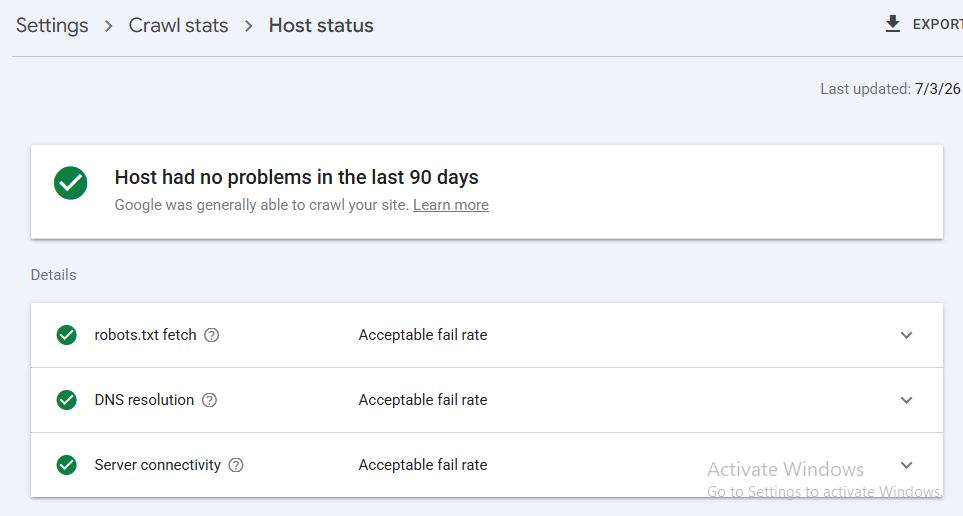
That is when I checked the hosting; the server was the real bottleneck.
Google says most sites should aim for TTFB under 0.8 seconds. TTFB means how fast your server sends the first reply.
How to Know Your Hosting Is Slow
Open your blog in an incognito window.
Then test it with PageSpeed Insights, GTmetrix, or Chrome DevTools.
Check these signs:
- Your page takes more than 3 seconds to start loading.
- Your admin dashboard feels heavy.
- Your site goes down often.
- Images load late, even after compression.
- Search Console shows poor Core Web Vitals.
- Your host shows CPU, RAM, or disk limit warnings.
Common Hosting and Server Problems
| Problem | What It Means | What You Should Do |
|---|---|---|
| Slow TTFB | Server replies late | Enable cache or upgrade hosting |
| Downtime | Site goes offline | Ask host for uptime logs |
| Low PHP memory | WordPress cannot run well | Increase memory to 256MB or more |
| CPU limits | Too many tasks hit the server | Remove heavy plugins |
| Disk limits | Storage is full | Delete backups and unused files |
| SSL issue | HTTPS is broken | Reinstall SSL from hosting panel |
| Cron issue | Scheduled tasks fail | Ask host to check WP-Cron |
| Email issue | Forms do not send mail | Use SMTP instead of PHP mail |
Cheap Hosting vs Premium Hosting
| Feature | Cheap Hosting | Premium Hosting |
|---|---|---|
| Performance | Fine for a tiny blog | Better for traffic and speed |
| Security | Basic protection | Stronger firewall and malware help |
| Support | Slow or script-based | Faster and more skilled |
| Scalability | Limited CPU and RAM | Easy upgrade path |
| Price | Low monthly cost | Higher, but safer |
Cheap hosting is not bad for a new blog.
But it becomes costly when slow speed blocks ranking, traffic, and user trust.
Which Hosting Type Should You Pick?
Use shared hosting when your blog is new and traffic is low.
Pick managed WordPress hosting when you want speed, backups, support, and fewer technical headaches.
Choose VPS hosting only when you know server basics.
Use cloud hosting when your blog gets steady traffic or sudden traffic spikes.
WordPress recommends hosts that support PHP 8.3 or greater, MySQL 8.0 or MariaDB 10.6, Apache or Nginx, and HTTPS.
My Practical Fix
For this beginner blog, I first cleared old backups.
Then I raised PHP memory, turned on server cache, fixed SSL, and moved email sending to SMTP.
The blog felt lighter the same day.
So, when you learn how to solve blog technical issues, do not stop at plugins and themes; check your hosting before blaming your content.

Step 4 — Fix Technical SEO Problems
Technical SEO is where many new blogs get stuck. So, if you want to solve blog technical issues, start by checking whether search engines can find, read, and index your pages.
I always check this before touching design or content. A beautiful blog is useless if Google cannot see it.
Google Indexing Problems
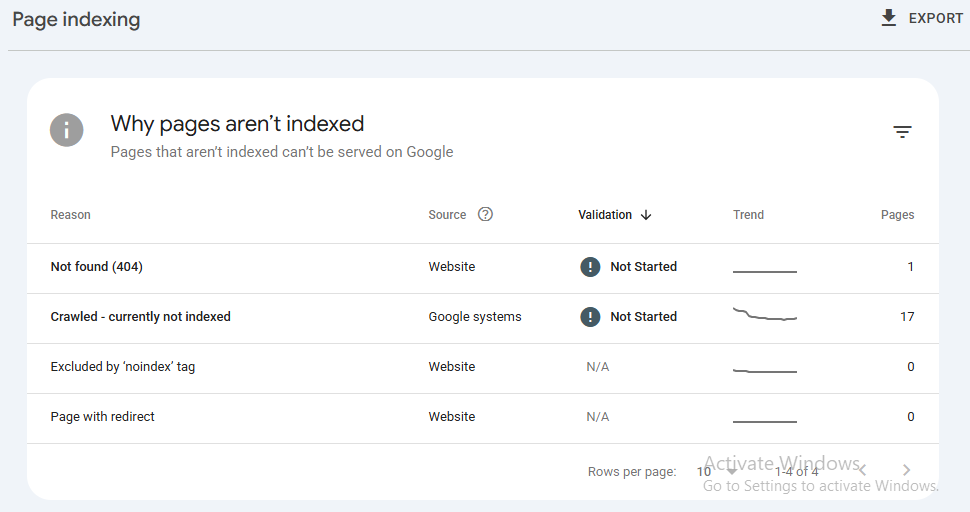
Open Google Search Console first. Go to Indexing → Pages and check why your blog posts are not showing on Google.
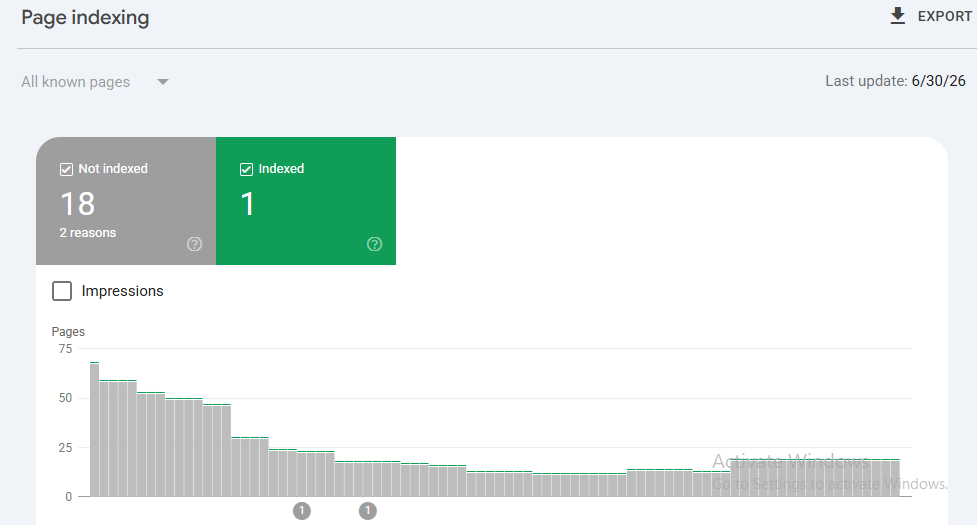
Google uses crawling and indexing before ranking. So, your page must pass these steps before it can get search traffic.
Check these common errors:
| Issue | What it means | What you should do |
|---|---|---|
| Pages not indexed | Google has not added the page | Inspect URL and request indexing |
| Discovered — currently not indexed | Google found it but has not crawled it yet | Improve internal links and sitemap |
| Crawled — currently not indexed | Google crawled it but skipped indexing | Improve content quality and uniqueness |
| Soft 404 | Page looks empty or weak | Add useful content or redirect it |
| Noindex tag | Page tells Google not to index it | Remove noindex if the page should rank |
| Canonical issue | Google picked another version | Set the correct canonical URL |
Google says “Discovered — currently not indexed” means Google found the page but has not crawled it yet. This often happens when Google delays crawling to avoid overloading the site.
Now check one post manually. Paste its URL in URL Inspection and see if Google says: “URL is on Google.”
If it is not indexed, fix the reason first. Then click Request Indexing only after the page is clean.
XML Sitemap
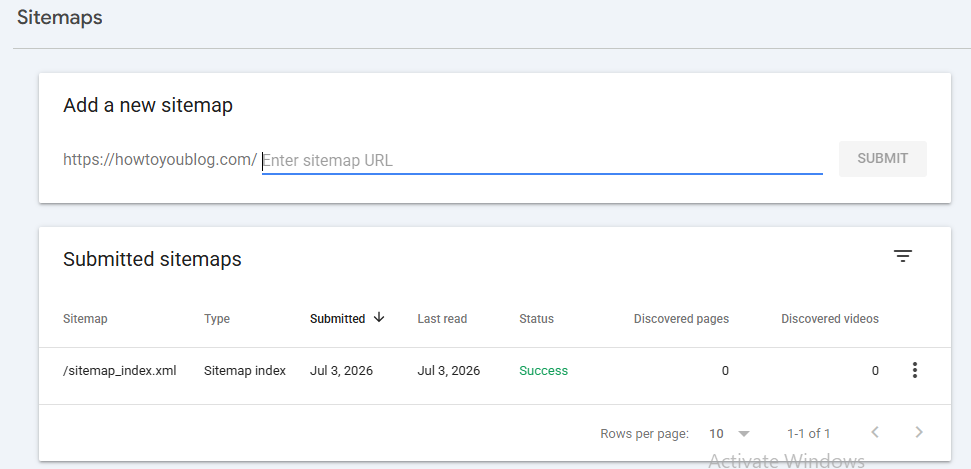
Your XML sitemap is like a clean road map for search engines. It tells Google and Bing which pages matter on your blog.
Google says a sitemap helps search engines crawl your site more efficiently. It can also show details like last updated date and alternate language versions.
For WordPress, use Rank Math, Yoast SEO, or your theme’s built-in sitemap. Then open this URL:
yourdomain.com/sitemap_index.xml
Now do four simple checks:
- Generate the sitemap.
- Submit it in Google Search Console.
- Submit it in Bing Webmaster Tools.
- Update it when you add or remove key pages.
Google also says submitting a sitemap is only a hint. It does not guarantee crawling or indexing.
So, do not stop with sitemap submission. Add strong internal links from your homepage, menu, and related posts.
robots.txt
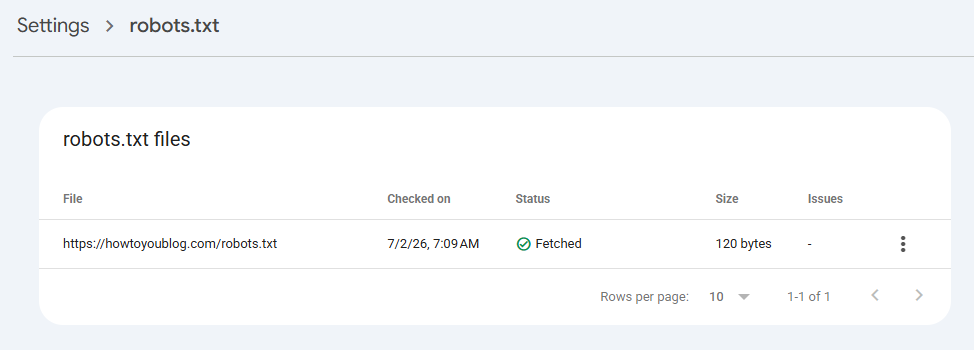
The robots.txt file tells search bots where they can and cannot go. It mainly manages crawler traffic, not ranking power.
Google says robots.txt cannot fully protect private content. For private pages, use password protection instead.
Open this URL:
yourdomain.com/robots.txt
A simple WordPress blog can use this:
User-agent: *Disallow: /wp-admin/Allow: /wp-admin/admin-ajax.phpSitemap: https://yourdomain.com/sitemap_index.xml
Avoid these beginner mistakes:
- Do not block
/wp-content/. - Do not block your blog posts.
- Do not block your sitemap.
- Do not use robots.txt to hide private files.
- Do not copy random rules from another website.
One wrong line can hide your full blog from Google. So, edit robots.txt only when you know why.
Broken Links and 404 Pages
Broken links waste user trust. They also make your blog look uncared for.
Check broken internal links first. These are links from your own posts to missing pages.
Then check external links. Old tools, deleted resources, and changed URLs often create dead links.
Fix them this way:
| Problem | Fast fix |
|---|---|
| Wrong internal link | Update the link |
| Deleted post | Redirect to a related post |
| Old external source | Replace with a fresh source |
| 404 page with backlinks | Use a 301 redirect |
| Redirect chain | Link straight to the final URL |
Do not redirect every deleted page to the homepage. That is lazy, and it gives users a bad path.
Use a related page instead. If there is no related page, make a helpful custom 404 page.
Duplicate Content
Duplicate content happens when the same or very similar content appears on many URLs. Google then has to choose the best version.
Google calls this canonicalization. It means Google selects one main URL from duplicate or similar pages.
On beginner WordPress blogs, duplicate content often comes from:
- Tag pages
- Category pages
- Author pages
- Date archives
- Pagination
- HTTP and HTTPS versions
- www and non-www versions
- Thin copied product or tool pages
Keep categories clean. Use fewer tags, and do not create a tag for every small word.
For example, do not create separate tags like “blogging,” “blog tips,” “blog guide,” and “blog help” for the same topic. Use one clear tag and build one strong topic page.
If two URLs show the same post, set the main URL as canonical. Google supports canonical signals to show which URL you prefer for duplicate or similar pages.
Quick Technical SEO Fix List
Do this in order:
- Check Google Search Console indexing errors.
- Inspect your most important blog posts.
- Submit a clean XML sitemap.
- Check robots.txt for blocking mistakes.
- Fix broken internal links.
- Redirect useful 404 pages.
- Remove thin tag and archive pages.
- Set correct canonical URLs.
- Submit your site to Bing Webmaster Tools.
- Recheck after 7 to 14 days.
Use Google Search Console for Google traffic. Use Bing Webmaster Tools to submit and manage sitemaps for Bing search.
Technical SEO is not magic. It is simple housekeeping: help search engines find the right pages, avoid confusing them, and keep your blog clean.
When you fix indexing, sitemap, robots.txt, broken links, and duplicate content, you remove the hidden blocks. That is one of the fastest ways to solve blog technical issues before blaming your content or niche.
Step 5 — Improve Website Speed & Core Web Vitals
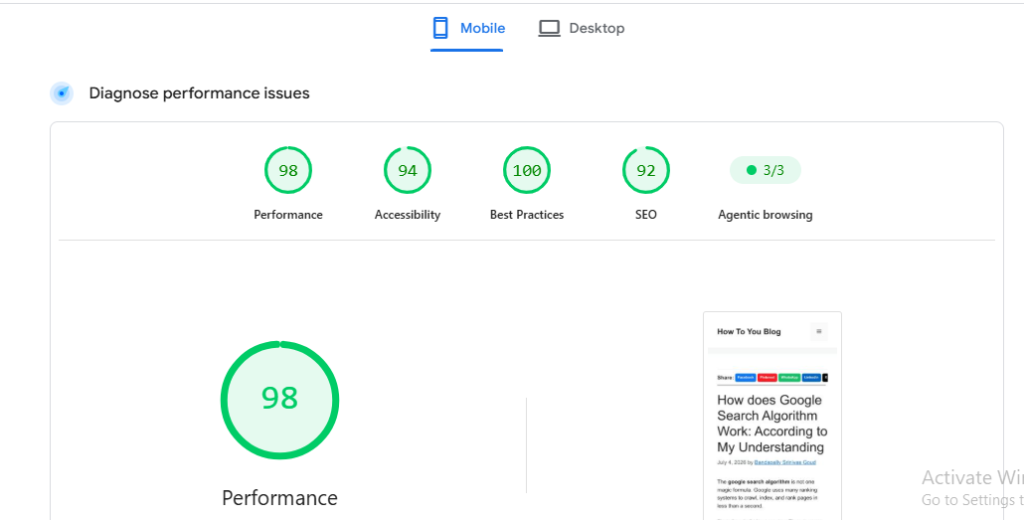
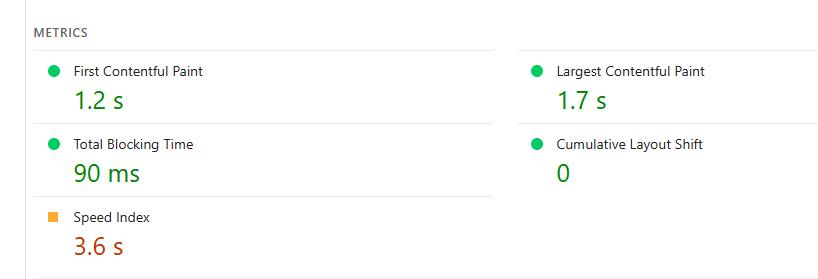
A slow blog feels like a closed shop. So, when you solve blog technical issues, fix speed before you blame content or keywords.
Google checks three Core Web Vitals: LCP, INP, and CLS. A good page should load its main content in 2.5 seconds, respond in 200 milliseconds, and keep layout shift below 0.1.
What These Speed Scores Mean
| Metric | Simple Meaning | Good Score |
|---|---|---|
| LCP | Main content loads fast | Under 2.5 sec |
| INP | Page reacts fast when clicked | Under 200 ms |
| CLS | Page does not jump | Under 0.1 |
Here is my rule: fix what the reader can feel first. If the page opens late, buttons freeze, or images jump, the blog already feels weak.
Easy Fixes You Can Do First
Start with caching. It saves a ready copy of your page, so your server does not build it again every time.
Next, compress images before upload. Use WebP images, keep blog images light, and avoid huge camera photos.
Then, turn on lazy loading. This loads images only when the reader scrolls near them.
Use a CDN if your readers come from many countries. It serves your blog from a nearby location.
Clean your database once a month. Remove old drafts, spam comments, revisions, and expired plugin data.
Also, delete plugins you do not use. One bad plugin can slow the whole blog.
Free Optimization vs Paid Optimization
| Option | Best For | Limit |
|---|---|---|
| Free fixes | New bloggers | Takes manual work |
| Paid tools | Busy bloggers | Costs money |
| Better hosting | Growing blogs | Monthly cost |
| Developer help | Hard issues | Needs budget |
My strong opinion: do not buy speed tools before cleaning the blog. Most new blogs are slow because of heavy themes, large images, poor hosting, and too many plugins.
So, if you want to improve page speed, start small: cache, compress, clean, remove, and test again. This is the safest way to fix Core Web Vitals and solve blog technical issues without breaking your site.
Step 6 — Find Why the Blog Isn’t Ranking
Many bloggers think low ranking means bad SEO. But often, the real issue is technical: Google may not see, read, or trust your post yet.
So, before you rewrite the whole article, check the base first. Google Search works in stages: crawling, indexing, and ranking.
First Check: Is Your Post Indexed?
Open Google and search this:
site:yourdomain.com/your-post-url
If your post does not show, ranking is not the problem yet. First, fix indexing in Google Search Console.
Use this simple path:
| What you see | What it means | What to do |
|---|---|---|
| Not indexed | Google has not added the post | Request indexing |
| Discovered, not indexed | Google found it but skipped it | Improve quality and internal links |
| Crawled, not indexed | Google read it but did not choose it | Fix thin content or duplicate content |
| Indexed | Google can rank it | Improve content and page quality |
Simple Ranking Decision Tree
Use this before touching anything else:
- Not indexed? Fix indexing first.
- Indexed but no traffic? Check search intent.
- Indexed but stuck low? Improve content depth.
- Good content but still low? Check speed, links, and page experience.
This saves time. You stop guessing and fix the real block.
Check Crawl Budget and Internal Links
For a small blog, crawl budget is usually not a big issue. But poor internal links can still hide your post from Google.
Add links from your homepage, category page, and 2 or 3 related posts. Use clear anchor text like “blog technical issues” or “WordPress indexing problems.”
Check Content Quality and Search Intent
Ask one hard question: does your post fully answer what the reader searched? If someone searches “why my blog doesn’t rank,” they want reasons, checks, and fixes.
Do not only define ranking. Show them what to open, what to check, and what to fix today.
Check Keyword Cannibalization
Keyword cannibalization means two or more posts fight for the same search query. For example, one blog may have “why my blog doesn’t rank” and “new blog no traffic” with almost the same advice.
Keep the stronger post as the main guide. Then merge, redirect, or clearly separate the weaker one.
Check Thin Content and Duplicate Pages
Thin content means the post has too little useful help. Duplicate content means Google sees very similar pages and must choose one main version.
Google uses canonicalization to pick one main URL from duplicate or similar pages. So, set the correct canonical URL and avoid publishing many near-copy posts.
Check Schema and Rich Results
Schema does not magically push you to page one. But it helps Google understand your content and may make your result richer in search.
Use FAQ schema only when the questions and answers are visible on the page. Then test it with Google’s Rich Results Test.
Check Page Experience
A slow page can hurt the reader before they read one line. In 2026, check LCP, INP, and CLS in PageSpeed Insights or Search Console.
Good targets are simple: LCP under 2.5 seconds, INP under 200 ms, and CLS under 0.1.
Quick Summary
If the post is not indexed, fix indexing. If it is indexed, improve content, intent match, internal links, speed, schema, and duplicate issues.
That is the clean way to solve “why my blog doesn’t rank.” First help Google find the post; then help the reader trust it.
Step 7 — Security & Maintenance
If you want to know how to secure WordPress blog safely, start with this rule: protect the site before you grow it. WordPress powers 41.5% of all websites in July 2026, so weak blogs are common targets.
First, Take a Backup
Before you update anything, take a full backup: files plus database. Store one copy outside your hosting account, like Google Drive or Dropbox.
I once fixed a small blog where the owner updated five plugins at once. The site broke, but the backup saved the day in 12 minutes.
Then, Check Malware
Malware can hide inside themes, plugins, uploads, or unknown admin users. So, scan your blog weekly with a trusted security plugin.
Watch for these signs:
- Strange popups
- Unknown redirects
- New admin users
- Sudden traffic drop
- Google warning in search
Keep SSL Active
Your blog must open with HTTPS, not HTTP. Google has used HTTPS as a ranking signal since August 7, 2014.
Check your SSL after hosting changes or domain changes. A broken SSL makes readers leave fast.
Use Automatic Updates Carefully
Turn on auto-updates for minor WordPress releases. But update major plugins manually after taking a backup.
Do not update 20 things at once. Update one item, test the site, then move to the next.
Use One Good Security Plugin
Use only one strong security plugin. Two security plugins can fight each other and slow your blog.
Good setup:
| Area | Simple Fix |
|---|---|
| Login attacks | Limit login attempts |
| Spam | Use anti-spam plugin |
| Malware | Weekly scan |
| Backups | Daily or weekly backup |
| Admin safety | Use strong password |
Fix User Roles
Do not give everyone admin access. Use Editor for writers and Author for guest posters.
Remove old users every month. One forgotten admin account can become the open door.
Stop Spam and Login Attacks
Add spam protection to forms and comments. Also, change weak passwords and use two-factor login.
Avoid the username admin. Attack bots try that name first.
Maintenance Checklist
Do this every week:
- Backup website
- Update plugins
- Check SSL
- Scan malware
- Delete spam
- Review users
- Test contact form
- Open site on mobile
Security is not one big job. It is a small weekly habit, and that habit is the cleanest way to backup WordPress website and keep your blog safe.
Real Case Study: How I Fixed One Beginner Blogger’s Website
This real case shows you how to solve blog technical issues without panic. The blog was new, but the problems were already hurting speed, indexing, and ranking.
The Pain: The Blog Was Live, But Nothing Worked Well
The blogger had published 18 posts in 2026. But only 5 pages were indexed in Google.
The home page loaded slowly. On mobile, the menu moved down and covered the blog title.
The blog had no traffic. Even the exact blog title did not rank on Google.
Inside WordPress, I found 31 plugins. Some did the same job.
The Diagnosis: I Checked the Blog Like a Doctor
I did not start with SEO first. First, I checked the site health, theme, hosting, speed, and Google Search Console.
Google says pages need crawling, indexing, and ranking steps before they can show in search. So, I checked each step one by one.
| Area Checked | Problem Found | Simple Meaning |
|---|---|---|
| WordPress | Too many plugins | The site was heavy |
| Theme | Mobile layout broken | Readers saw a bad page |
| Hosting | Slow server response | Pages opened late |
| SEO | Sitemap not submitted | Google missed pages |
| Indexing | Many posts not indexed | Posts could not rank |
| Speed | Poor LCP and CLS | Page felt slow and jumpy |
The Fixes: I Solved Problems in the Right Order
First, I took a full backup. You should never fix a live blog without backup.
Next, I removed duplicate plugins. One cache plugin, one SEO plugin, and one security plugin were enough.
Then, I updated WordPress, the theme, and active plugins. After that, I fixed the broken mobile header with theme settings.
Next, I connected Google Search Console. Then I submitted the XML sitemap again.
After that, I checked index coverage. I removed wrong noindex tags from important blog posts.
Then, I compressed large images. Some images were above 1 MB, so I reduced them before upload.
Finally, I added caching and lazy loading. I also cleaned old plugin tables from the database.
Timeline: Before and After
| Timeline | What Happened |
|---|---|
| Day 1 | Backup, plugin cleanup, theme fix |
| Day 2 | Sitemap, indexing, Search Console fixes |
| Day 3 | Image compression, cache, speed fixes |
| Day 7 | More pages started appearing in Google |
| Day 30 | Blog became faster and easier to crawl |
The Result: The Blog Started Working Smoothly
The site loaded faster. The mobile layout looked clean.
More posts moved into Google’s index. The blogger could finally track search queries in Search Console.
Core Web Vitals also improved. Google uses LCP, INP, and CLS to measure page experience, with good targets like LCP under 2.5 seconds, INP under 200 ms, and CLS under 0.1.
This was not magic. It was a simple order: backup, WordPress fix, hosting check, indexing fix, speed fix, then ranking review.
So, when you want to know how to solve blog technical issues, do not guess. Check the blog step by step, fix the real cause, and measure the result.
Beginner-Friendly Technical Audit Checklist
Use this blog technical audit checklist before you touch any plugin, theme, or SEO setting.
Do not guess first; check first.
| Check | What to do |
|---|---|
| Backup completed | Take a full backup before any fix. |
| Plugins updated | Update safe plugins one by one. |
| Theme updated | Update your active theme and child theme. |
| HTTPS working | Open your site with https://. |
| SSL active | Check the lock icon in the browser. |
| Sitemap live | Visit /sitemap.xml or your SEO plugin sitemap. |
| robots.txt clean | Make sure Google is not blocked. |
| Search Console added | Check indexing, errors, and pages. |
| Analytics added | Track traffic and user actions. |
| Mobile friendly | Open posts on your phone. |
| Core Web Vitals | Check LCP, INP, and CLS. |
| Internal links | Link old posts to new posts. |
| Broken links | Fix 404 pages and dead links. |
| Images optimized | Compress big images before upload. |
| Database cleaned | Remove old drafts, spam, and trash. |
WordPress powers 41.5% of all websites in July 2026, so most beginner blog issues have known fixes. Google also recommends good Core Web Vitals: LCP under 2.5 seconds, INP under 200 ms, and CLS under 0.1.
My 15-Minute Blog Check
I use one simple rule: never fix ten things at once.
First, I back up the site. Then I check Search Console, PageSpeed Insights, WordPress Site Health, and the live blog post on mobile.
Quick Fix Order
- Fix backup first.
- Fix HTTPS and SSL next.
- Fix sitemap and robots.txt.
- Fix plugin and theme errors.
- Fix speed and images.
- Fix links and indexing.
This order saves you from panic.
It also helps you solve blog technical issues without breaking your blog again.
Common Mistakes Beginners Make
When you try to fix blog technical issues, the biggest danger is not the issue itself. The real danger is fixing the wrong thing first.
Installing Too Many Plugins
Do not install 40 plugins because one YouTube video said so. Each plugin can add code, slow pages, or create conflict.
Use one plugin for one job: SEO, cache, backup, security, and forms. Remove plugins you do not use.
Ignoring Backups
Never update WordPress, themes, or plugins without a backup. One bad update can break your full blog.
Keep one backup in your hosting account and one outside it. This gives you a safe return point.
Changing Themes Again and Again
A new theme may look nice, but it can break layout, speed, and SEO settings. So test it on staging first.
I have seen beginner blogs lose menus, fonts, and schema after one theme change. Pretty design is useless if Google and readers cannot read the page.
Buying Very Cheap Hosting
Cheap hosting is fine for testing, but not always for growth. Slow servers can hurt user experience and page speed.
If your blog is slow even after image compression and cache, ask your host about PHP memory, server response time, and CPU limits.
Ignoring Search Console
Google Search Console shows indexing, crawl, and URL problems from Google’s side. Google says the Page Indexing report shows the indexing status of URLs it knows about.
Check it every week. Fix “not indexed,” sitemap, mobile, and page errors before blaming your content.
Deleting URLs Without Thinking
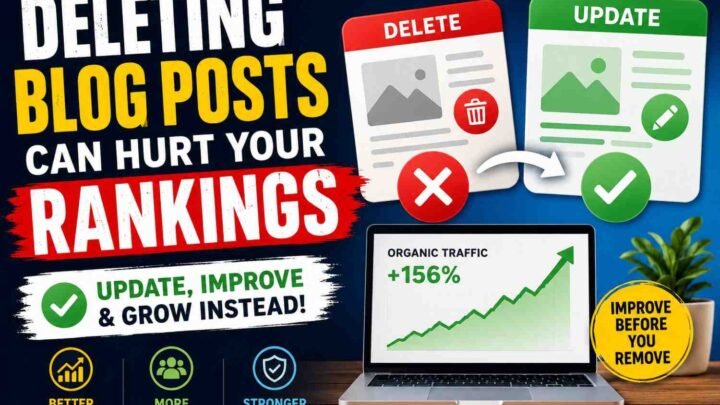
Do not delete old posts like waste paper. Deleted URLs can create 404 errors.
Instead, update weak posts, merge similar posts, or use 301 redirects. This keeps link value safer.
Using Nulled Themes
Free cracked themes are not free. They can carry hidden malware, bad links, or backdoors.
Use themes from WordPress.org, trusted companies, or your own paid account. Saving ₹2,000 can cost your full blog.
Not Updating PHP
Old PHP can make WordPress slow and unsafe. WordPress 6.8 added full compatibility with PHP 8.3 in July 2025, and WordPress 6.9 added beta support for PHP 8.5.
Ask your host before changing PHP. First update plugins and theme, then test the site.
Ignoring Site Health
WordPress Site Health shows critical issues, recommended improvements, and passed tests. Use it like your blog’s basic medical report.
Go to: WordPress Dashboard → Tools → Site Health. Fix red warnings first.
Not Checking Mobile View
Most readers will open your blog on a phone. So check every page on mobile before publishing.
Look for tiny text, broken buttons, wide tables, slow images, and popups. These small mistakes create big blog technical issues.
You can use this section inside the article as-is.
Frequently Asked Questions
Why isn’t my blog indexed?
Your blog may not be indexed because Google has not found it yet. Or, your page may have a noindex tag, a sitemap issue, thin content, or a crawl block.
First, check the URL in Google Search Console. Google explains that Search works in stages: crawling, indexing, then ranking.
Can bad hosting affect rankings?
Yes, bad hosting can hurt your blog. Slow servers can make your pages load late, go down often, or fail during high traffic.
This matters because Google checks page experience signals like LCP, INP, and CLS. A good page should load the main content within 2.5 seconds, respond within 200 milliseconds, and keep layout shift under 0.1.
Do plugins slow WordPress?
Yes, plugins can slow WordPress. But the number of plugins is not the only problem.
One heavy plugin can hurt more than ten light plugins. So, remove plugins you do not use, avoid duplicate tools, and test speed after each big change.
How often should I audit my blog?
Audit your blog once every month. Also, check it after theme changes, plugin updates, hosting changes, or traffic drops.
Use this simple routine:
- Weekly: check uptime, spam, backups, and broken pages.
- Monthly: check speed, indexing, sitemap, plugins, and Search Console.
- Every 3 months: review hosting, Core Web Vitals, content decay, and old posts.
How long until rankings improve?
Small technical fixes may show results in a few days. Bigger SEO fixes may take 4 to 12 weeks.
However, fixing technical issues does not guarantee ranking. Google says it does not guarantee crawl, index, or ranking, even when a page follows its rules.
Should beginners hire an SEO expert?
Hire an expert when the risk is high. For example, do not play with malware, server errors, database errors, redirects, or large traffic drops.
But you can fix simple issues yourself. You can update plugins, submit a sitemap, compress images, improve menus, and check Search Console.
| Situation | Best Action |
|---|---|
| Slow blog | Try cache, image compression, and better hosting |
| Not indexed | Check sitemap, noindex, and URL Inspection |
| Malware warning | Hire a security expert |
| Theme broken | Ask theme support or developer |
| Traffic drop | Check Search Console first |
What is the difference between technical SEO and on-page SEO?
Technical SEO helps Google access and read your blog. It includes sitemap, speed, mobile layout, indexing, redirects, and HTTPS.
On-page SEO helps readers and Google understand your content. It includes title tags, headings, keywords, internal links, images, and helpful answers.
Can AI-generated content rank if technical issues are fixed?
Yes, but only if the content is useful, original, and made for people. Technical fixes only help Google reach your page; they do not make weak content strong.
My rule is simple: fix the blog first, then improve the words. That is the real way to solve blog technical issues without guessing.
Final Thoughts
You do not need to be a coder to solve blog technical issues. You only need a clear order: check first, fix second, test last.
Start with the simple things: backup, WordPress health, hosting, sitemap, speed, and security. Then check Google Search Console before you blame your content or keywords.
Most beginner blogs do not fail because of one big problem. They fail because small issues sit together: slow hosting, broken plugins, poor indexing, weak internal links, and no regular checks.
Fix your blog like a doctor checks a patient. First find the symptom, then confirm the cause, then apply the safest fix.
Keep this short checklist in mind:
- Fix WordPress issues first.
- Check hosting and server speed.
- Solve technical SEO errors.
- Improve page speed.
- Secure the blog.
- Track results weekly.
Once your blog runs clean, ranking becomes easier. So, before you publish more posts, solve blog technical issues and give your content a fair chance.



Leave a Reply