A few years ago, if someone told me I could ask a computer almost any question and get a helpful answer within seconds, I probably would’ve laughed. Yet here we are. Tools like Google Gemini have changed the way many people work, study, write, and even solve everyday problems.
If you’re new to Gemini, don’t worry. You don’t need to be a tech expert or a computer programmer to use it. In fact, if you can type a question into Google Search, you’re already most of the way there.
Google Gemini is Google’s AI assistant that can help with all sorts of tasks. You can ask it to explain difficult topics, write emails, summarize long articles, create content ideas, help with homework, generate code, and much more. I’ve spent time testing it for writing, research, and simple daily tasks, and sometimes it’s surprising how much time it can save.
In this Google Gemini tutorial, I’ll show you exactly how to use Google Gemini step by step. You’ll learn how to access it, write better prompts, use its most useful features, and avoid common mistakes that many beginners make.
The reason Gemini is becoming so popular is pretty simple. It’s connected to Google’s ecosystem, easy to use, and keeps getting smarter with new features. Whether you’re a student, blogger, freelancer, business owner, or simply curious about AI, there’s a good chance you’ll find something useful here.
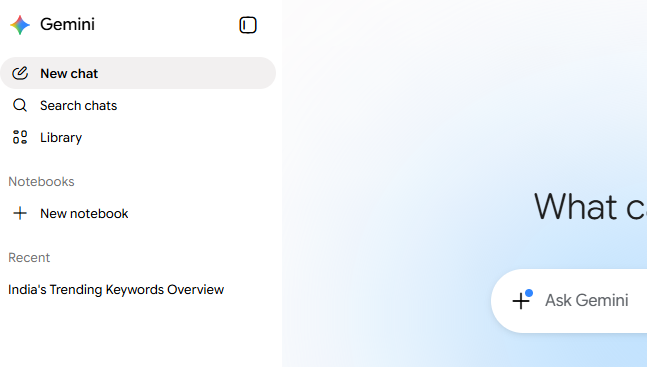
Let’s start with the basics and see what Google Gemini actually is and how it works.
What Is Google Gemini?
If you’ve been hearing people talk about Google Gemini and wondering what all the fuss is about, you’re not alone. I had the same question when I first came across it. At first glance, it looked like just another AI chatbot. But after spending some time with it, I realized it’s a lot more than that.
Google Gemini is an AI assistant created by Google. You can ask it questions, generate content, summarize information, brainstorm ideas, write emails, analyze files, help with coding, and even assist with research. Think of it as having a smart digital helper sitting beside you, ready whenever you need a second opinion or a helping hand.
The story of Gemini actually started with Google Bard. Back in 2023, Google launched Bard to compete with other AI tools that were becoming popular. Bard worked well for basic conversations, but Google had much bigger plans. As the technology improved, Bard evolved into something more powerful. In early 2024, Google officially renamed Bard to Gemini, bringing together its latest AI models under one name.
Honestly, the change wasn’t just about rebranding. Gemini became smarter, faster, and more capable. It could understand text, images, documents, and even different types of information at the same time. That made it feel less like a simple chatbot and more like a genuine AI assistant.
One thing that often confuses beginners is the different Gemini models. Google offers several versions designed for different tasks. Some models focus on speed and everyday use, while others are built for complex reasoning, coding, research, and advanced problem-solving. Most users won’t need to worry too much about the technical details. You’ll simply choose the version that matches your needs.
Another thing worth knowing is that Google Gemini is no longer just a website where you chat with AI. It’s becoming an entire ecosystem. You can find Gemini inside Gmail, Google Docs, Google Sheets, Google Drive, Android devices, and other Google services. For people who already use Google’s products every day, that integration feels surprisingly convenient.
Many people also ask, “Is Gemini free?” The answer is yes, there is a free version available for anyone who wants to try it. Google also offers premium plans with access to more advanced features and powerful AI models.
So, what does Google Gemini do? In simple terms, it helps you get things done faster. Whether you’re writing a blog post, studying for an exam, planning a trip, organizing work tasks, or learning a new skill, Gemini can save time and make the process a little easier. It’s not perfect—no AI tool is—but it’s quickly becoming one of the most useful tools in Google’s growing AI world.
How to Access Google Gemini
When I first heard about Google Gemini, I assumed it would be complicated to access. You know how some new tools make you create accounts, download extra software, and go through a bunch of setup screens? Thankfully, Gemini isn’t like that.
If you already have a Google account, you’re pretty much halfway there. Whether you’re sitting at your laptop, scrolling on your Android phone, or using an iPhone, getting started takes only a few minutes.
Let’s go through each option.
Access Gemini on Desktop
If you’re using a computer, this is probably the easiest way to use Gemini.
Open your web browser and visit the Gemini website. Sign in with your Google account, and that’s it. You’ll see a chat interface where you can start asking questions right away.
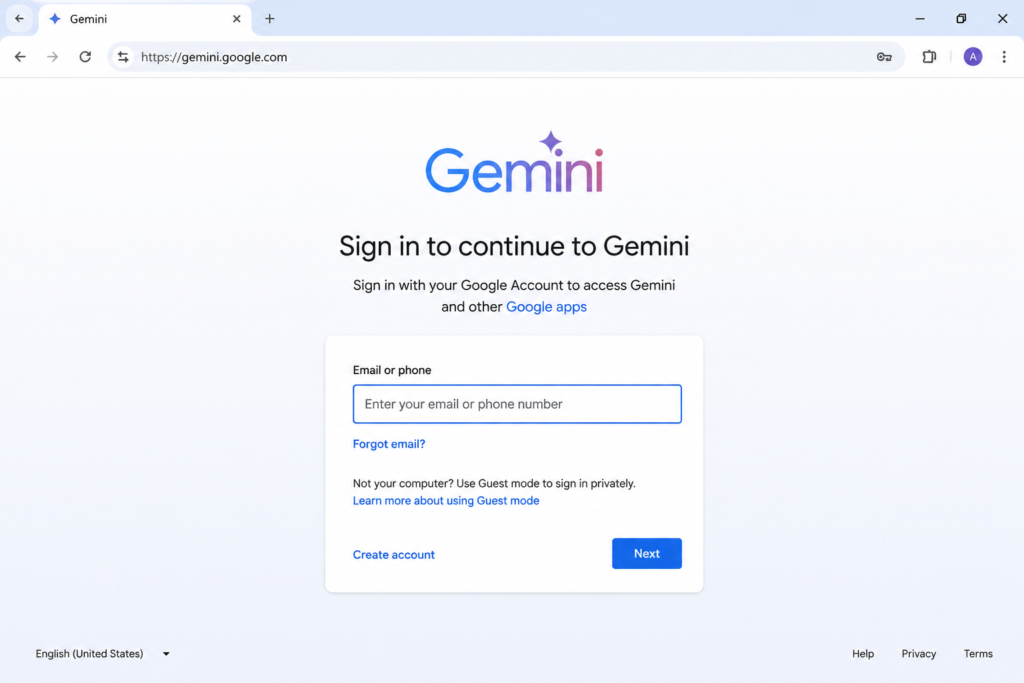
I actually prefer the Gemini web version when I’m writing blog posts or researching a topic. The larger screen makes it easier to read long responses and compare information side by side.
Once you’re logged in, try asking something simple like:
“Explain SEO in simple words.”
Or:
“Create a 7-day study plan for learning English.”
You’ll immediately get a feel for how Gemini works.
Another thing I like is that there isn’t much clutter. The screen feels clean and easy to navigate, even if you’ve never used an AI assistant before.
Access Gemini on Android
If you own an Android phone, using Gemini feels even more natural because it’s deeply connected with Google’s ecosystem.
Head over to the Google Play Store and search for the Gemini app. Download it, sign in with your Google account, and you’re ready to go.
After installation, you can chat with Gemini just like you would on the desktop version.
One thing that surprised me was how useful it became during everyday tasks. Sometimes I’ll be walking around and suddenly need help writing an email or checking information. Instead of opening multiple apps, I simply open Gemini and ask.
It saves a surprising amount of time.
Access Gemini on iPhone
Good news if you’re an iPhone user—you don’t have to miss out.
Open the App Store, search for the Gemini app, and install it. Once the download finishes, sign in using your Google account.
The experience is very similar to Android. You can ask questions, generate content, brainstorm ideas, summarize information, and much more.
I have a friend who uses Gemini almost daily on her iPhone to organize study notes. She takes screenshots of long articles and asks Gemini to summarize them into key points. It turns a 20-minute reading session into a quick review.
Pretty handy when you’re short on time.
Gemini Advanced Subscription
You may have noticed a paid version called Gemini Advanced.
The free version works well for most people. If you’re casually using Gemini for writing, studying, brainstorming, or answering questions, you probably won’t hit many limitations.
But if you use AI heavily for work, research, coding, content creation, or business tasks, Gemini Advanced can be worth looking at.
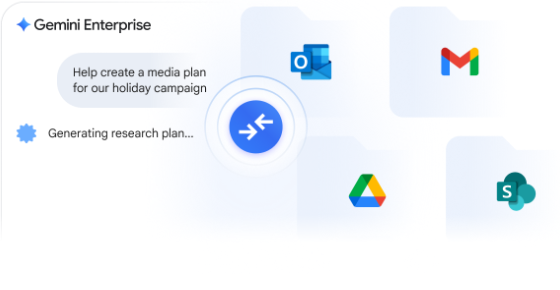
The subscription gives access to Google’s more powerful AI models and additional features that aren’t available in the free plan.
My suggestion? Start with the free version first.
Spend a few days experimenting with prompts. Write some content. Ask questions. Upload a few files. See how it fits into your daily routine.
If you find yourself using Gemini constantly and wanting more advanced capabilities, then upgrading will make a lot more sense.
For most beginners, though, the free version is more than enough to learn what Gemini can do and decide whether it’s right for you.
How to Use Google Gemini Step-by-Step
The first time I opened Google Gemini, I honestly wasn’t sure what to expect. I’d heard people talking about it everywhere. Some said it could write articles. Others used it for coding, studying, and even planning vacations.
So I signed in and started clicking around.
The funny thing? Gemini isn’t complicated at all. Most people overthink it.
At its core, you’re simply having a conversation with an AI assistant. The better you explain what you need, the better the answer usually becomes.
If you’re completely new to Gemini, don’t worry. I’ll walk you through the exact process.
Step 1: Sign In
The first step is easy.
Go to the Gemini website or open the Gemini app on your phone. Then sign in using your Google account.
If you already use Gmail, YouTube, or Google Drive, you’re halfway there because the same account works for Gemini.
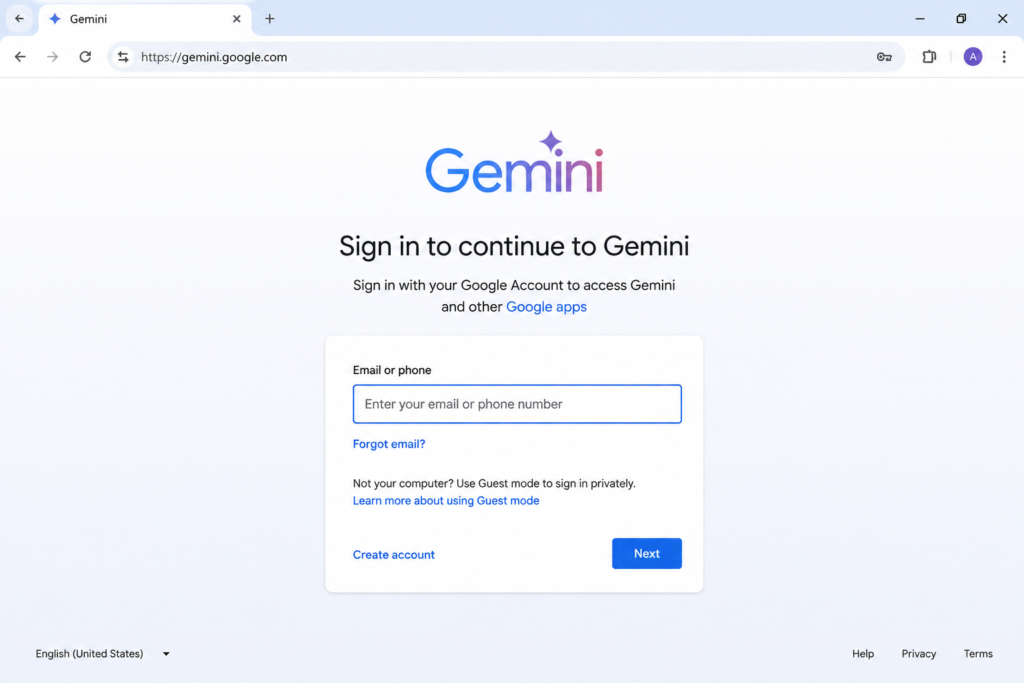
Once you’re signed in, you’ll see a chat box waiting for your first question.
That’s it.
No complicated setup.
No technical skills needed.
Just a blank space where you can start typing.
I remember staring at that empty box for a minute and thinking, “Okay… what am I supposed to ask now?”
If you’re feeling the same way, you’re not alone.
Step 2: Enter Your Prompt
A prompt is simply the message you type into Gemini.
Think of it like asking a friend for help.
The biggest mistake beginners make is being too vague.
For example, imagine asking:
Bad Prompt:
“Write an article.”
That’s it.
Gemini has no idea what kind of article you want.
Now look at this:
Good Prompt:
“Write a 1,000-word beginner-friendly article about vegetable gardening. Use simple language and include practical tips.”
See the difference?
The second prompt gives Gemini a clear direction.
The more details you provide, the better the results usually become.
Here are a few examples:
For Students
“Explain photosynthesis in simple words as if teaching a 10-year-old.”
For Bloggers
“Create a blog outline about passive income ideas for beginners.”
For Business Owners
“Write a professional email responding to a customer complaint.”
For Travelers
“Create a 5-day travel itinerary for Hyderabad on a budget.”
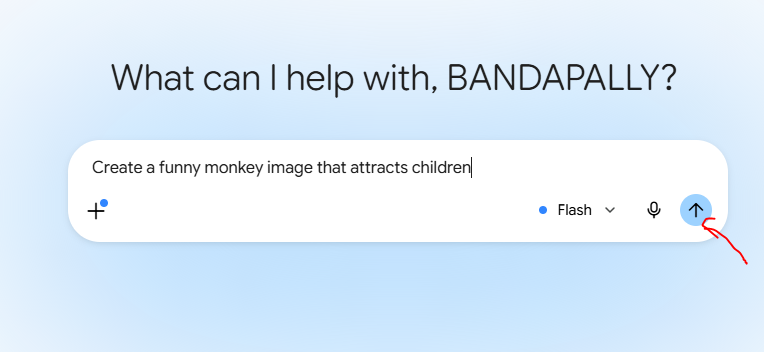
One small tip that saved me a lot of frustration…
Don’t treat Gemini like a search engine.
Treat it like a person.
Talk normally.
Ask questions.
Give context.
You’ll often get much better answers.
Step 3: Review the Responses
Once you submit your prompt, Gemini starts generating a response.
Sometimes you’ll get exactly what you need.
Sometimes you won’t.
And that’s perfectly normal.
Many people think AI should magically understand everything on the first try.
Reality is a little messier.
When Gemini gives you an answer, spend a few seconds reviewing it.
Ask yourself:
- Is this accurate?
- Is this complete?
- Does it answer my question?
- Can it be improved?
For example, if Gemini creates a blog outline, check whether the headings actually make sense.
If it writes code, test the code.
If it gives facts or statistics, verify them from trusted sources.
I still double-check important information. You should too.
AI is helpful, but it’s not perfect.

One thing I like about Gemini is that it usually responds quickly. You can immediately continue the conversation without starting over.
That makes the process feel much more natural.
Step 4: Refine Your Prompt
This is where the real magic happens.
Most people stop after the first answer.
Experienced users don’t.
They keep refining.
Imagine Gemini gives you a blog introduction that feels too formal.
Instead of starting from scratch, simply say:
“Make it more conversational.”
Or:
“Rewrite this for beginners.”
Or:
“Add real-life examples.”
Or:
“Shorten it to 200 words.”
Gemini will adjust the content.
This back-and-forth process often produces much better results than expecting perfection immediately.
Here’s an example.
First Prompt
“Create a workout plan.”
The response might be generic.
Then you can follow up with:
“Create a workout plan for a 35-year-old beginner who can exercise only 30 minutes daily.”
Suddenly the answer becomes far more useful.
Bad Prompt Example
“Help me with marketing.”
Too broad.
Better Prompt Example
“Suggest five low-cost marketing strategies for a local bakery that wants more customers.”
Specific prompts create specific answers.
That’s something I learned after wasting way too much time asking vague questions.

Step 5: Save or Export Results
Once you’re happy with the response, save it.
This step sounds obvious, but you’d be surprised how many useful ideas disappear because people forget.
If Gemini creates:
- A blog outline
- Study notes
- Business plan
- Email draft
- Travel itinerary
- Code snippet
Save it somewhere safe.
Copy it into Google Docs.
Store it in Notion.
Add it to your notes app.
Whatever system works for you.
I personally like saving useful prompts too.
Sometimes the prompt itself becomes more valuable than the answer because you can reuse it again and again.
For example:
“Create a beginner-friendly blog outline about [TOPIC] with SEO keywords.”
That’s a template you can use for dozens of future articles.
Real-Life Ways People Use Google Gemini
Once you understand the basic workflow, the possibilities start opening up.
Students use Gemini to summarize chapters and create study notes.
Bloggers use it to brainstorm ideas and build outlines.
Freelancers draft proposals faster.
Developers generate code examples.
Business owners write emails, product descriptions, and marketing content.
I’ve even seen people use Gemini to plan family vacations, organize shopping lists, and create meal plans.
The process stays the same every time:
- Ask a question.
- Review the answer.
- Refine the request.
- Save the final result.
That’s really all there is to it.
You don’t need to learn complicated commands.
You don’t need technical knowledge.
Just be clear about what you want, keep the conversation going, and don’t be afraid to ask follow-up questions.
The more you use Google Gemini, the more natural it feels. Before long, you’ll probably find yourself opening it whenever you need ideas, explanations, or a little help getting started on a task.
Best Google Gemini Features You Should Know
When I first started using Google Gemini, I thought it was just another AI chatbot where you type a question and get an answer. That’s how most people see it at first.
Then I spent a few days actually using it for writing, research, emails, YouTube videos, and even organizing information for blog posts. That’s when I realized Gemini is much more than a chatbot.
Some features genuinely save time. Others feel a bit futuristic. And a few made me wonder how I managed without them before.
Here are the Google Gemini features that stand out the most.
Read More: How to Use Grok AI Image Generator?
Gemini Live
Imagine talking to AI the same way you’d talk to a friend on a phone call.
That’s basically what Gemini Live does.
Instead of typing every question, you can simply speak. Gemini listens and responds naturally. You can even interrupt it in the middle of a response if you want to change the topic or ask a follow-up question.
I tested it while cooking one evening. My hands were covered in flour, and I needed quick answers about ingredient substitutions. Rather than washing my hands every few minutes to type, I just asked Gemini aloud.
It felt surprisingly natural.
Gemini Live can be useful for:
- Brainstorming ideas
- Practicing interviews
- Learning a new topic
- Language practice
- Planning trips
- Quick everyday questions

Deep Research
This feature honestly surprised me.
Normally, when researching a topic online, I end up opening ten or fifteen browser tabs. Halfway through, I forget which tab contained what information.
Deep Research helps reduce that mess.
You give Gemini a topic, and it searches, analyzes information, and creates a structured research report. Instead of hopping between websites for hours, you get a summary that helps you understand the subject much faster.
For example, if you’re researching electric vehicles, investing, digital marketing, or travel destinations, Deep Research can gather information from multiple sources and organize it into something readable.
Does it replace human research completely?
No.
I still double-check facts when writing important content. But it definitely cuts down the amount of digging you need to do.
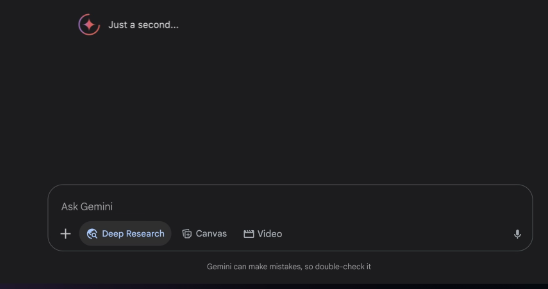
Canvas
Canvas feels like having a workspace attached to your AI assistant.
Instead of getting short responses in a chat window, you can create and edit larger projects in one place.
Let’s say you’re writing a blog post.
You can ask Gemini to create an outline, expand sections, rewrite paragraphs, and make edits without constantly copying content into another document.
What I like most is that everything stays organized.
No endless scrolling through old conversations trying to find where you saved that one useful paragraph.
Canvas works well for:
- Blog posts
- Reports
- Study notes
- Marketing plans
- Business documents
- Long-form writing projects
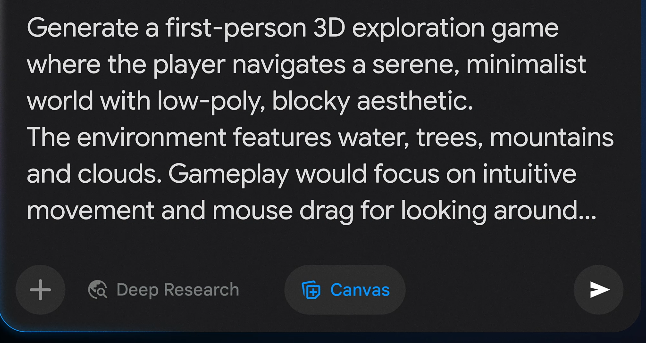
Image Generation
Sometimes words aren’t enough.
That’s where Gemini’s image generation feature becomes useful.
You simply describe what you want, and Gemini creates an image based on your instructions.
For example:
- A futuristic city at sunset
- A cartoon-style dog riding a bicycle
- A modern office workspace
- A realistic mountain landscape
The better your description, the better the image usually turns out.
I’ve found it especially helpful for creating blog illustrations, social media graphics, presentation visuals, and creative experiments.
Just remember that AI-generated images aren’t always perfect on the first attempt. Occasionally you’ll need to refine your prompt and try again.
That’s normal.

File Upload Analysis
This feature saves an incredible amount of time.
Instead of reading a long document from start to finish, you can upload the file directly into Gemini and ask questions about it.
For example, you can upload:
- PDFs
- Word documents
- Reports
- Research papers
- Spreadsheets
- Presentations
Then ask things like:
- “Summarize this report.”
- “What are the main findings?”
- “Explain this document in simple language.”
- “Create action items from this file.”
I once uploaded a lengthy PDF guide that was over 100 pages long. Reading it manually would have taken hours.
Gemini helped me understand the main points in minutes.
Of course, I still reviewed the important sections myself afterward, but it gave me a huge head start.

YouTube Video Analysis
This is one of those features that many people don’t know exists.
You can provide a YouTube video link and ask Gemini questions about the content.
Instead of watching a 45-minute video from beginning to end, you can ask:
- What is this video about?
- Summarize the key points.
- What lessons can I learn from this video?
- Give me actionable takeaways.
This can be incredibly useful when you’re researching a topic or trying to decide whether a video is worth watching completely.
I still enjoy watching good videos, but sometimes you’re in a hurry and just need the important information quickly.
That’s where this feature shines.

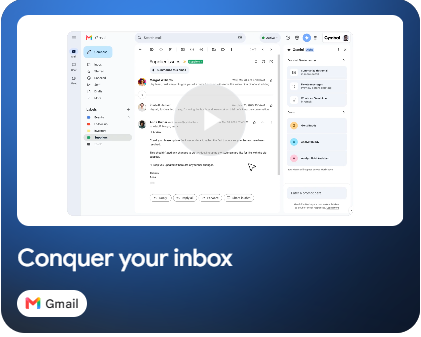
Gmail Integration
If your inbox looks anything like mine, there’s always something waiting for attention.
Emails pile up fast.
Gemini’s Gmail integration helps by reading email threads, summarizing conversations, and even helping draft replies.
For example, you can ask:
- Summarize recent emails.
- Draft a professional response.
- Find important information from a conversation.
- Create a quick reply.
The first time I used it, I had a long email chain with multiple responses. Instead of reading every message individually, Gemini summarized the entire discussion in a few seconds.
That alone saved a lot of time.
Google Docs Integration
If you spend time writing documents, this feature feels incredibly useful.
Gemini can help inside Google Docs by:
- Generating content ideas
- Rewriting paragraphs
- Improving clarity
- Correcting grammar
- Summarizing text
- Creating outlines
Sometimes when I’m stuck staring at a blank page, I’ll ask Gemini to suggest a few opening ideas.
Not because I want it to write everything for me.
Just because getting started is often the hardest part.
Once the first few ideas appear, the writing process becomes much easier.
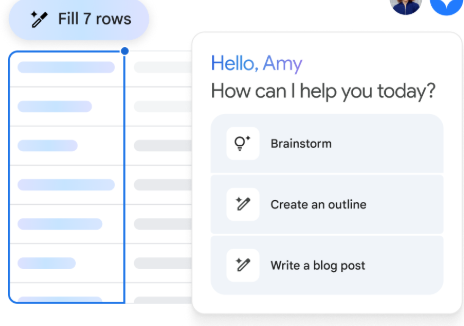
Google Sheets Integration
Spreadsheets can be intimidating.
At least they are for me when formulas start getting complicated.
Gemini helps make Google Sheets less stressful.
You can ask questions like:
- Create a formula.
- Explain this spreadsheet.
- Analyze data trends.
- Build charts.
- Organize information.
Imagine having hundreds of rows of sales data and wanting quick insights without manually sorting everything.
Gemini can help identify patterns and explain what’s happening in plain English.
That means less time fighting with formulas and more time understanding your data.
Google Gemini keeps adding new tools and capabilities, but these features are the ones most people will find useful right away. Whether you’re a student, blogger, freelancer, marketer, or business owner, there’s a good chance at least one of these features will make your daily work a little easier.
How to Use Google Gemini for Content Writing
When I first started using Google Gemini for content writing, I honestly thought it would just spit out generic text like many AI tools do. Sometimes it does. But after spending time with it, asking better questions, and testing different prompts, I realized it can save a surprising amount of time.
The trick isn’t letting Gemini do all the work. The real trick is learning how to work with it.
Blog Writing
Writing a blog post can feel overwhelming, especially when you’re staring at a blank screen and have no idea where to begin. I’ve been there more times than I can count.
Google Gemini can help you get past that first hurdle. You can ask it to generate blog topic ideas, create outlines, suggest headlines, or even draft sections of an article.
For example, instead of typing:
“Write a blog post about weight loss.”
Try something like:
“Create a beginner-friendly blog post outline about healthy weight loss for busy office workers.”
See the difference?
The more details you provide, the better the results usually become.
That said, I wouldn’t publish Gemini’s first draft without reviewing it. I treat it like a helpful assistant, not the final writer.
SEO Content
Many bloggers use Gemini to speed up SEO content creation.
Let’s say you’re writing about “how to start a blog.” Gemini can help generate related questions, content ideas, FAQs, and keyword variations that readers may search for.
I often use it when I get stuck finding subtopics. Sometimes my brain simply runs out of ideas after writing for hours. Gemini can offer fresh angles I didn’t think about.
Still, don’t blindly trust every suggestion.
AI tools occasionally invent facts, misunderstand search intent, or recommend keywords that don’t make sense. Before adding anything to your article, double-check it using Google Search, Search Console, or a reliable keyword research tool.
A few extra minutes of verification can save a lot of headaches later.
Social Media Posts
Not every piece of content needs to be a 2,000-word article.
Sometimes you just need a quick Facebook update, an Instagram caption, a LinkedIn post, or a short tweet.
This is where Gemini can be surprisingly useful.
For example, if you’ve published a blog post, you can paste part of the article into Gemini and ask:
“Create five social media posts promoting this article.”
Within seconds, you’ll have several versions to work with.
I rarely use them exactly as generated, though. I usually add my own thoughts, change the wording, or include a personal story. Those little human touches often make a post feel more genuine.
People connect with people, not perfectly generated text.
Email Drafts
Writing emails can sometimes take longer than writing the actual work you’re emailing about.
Whether it’s a client follow-up, a business proposal, a customer support reply, or a newsletter introduction, Gemini can help organize your thoughts.
A while ago, I had to write a polite email declining a project. I kept rewriting the same message over and over. Out of curiosity, I asked Gemini for help.
The draft wasn’t perfect, but it gave me a starting point. After a few edits, the email sounded professional and still felt like something I would actually say.
That’s how I use Gemini most often—as a rough draft generator.
Product Descriptions
If you run an online store, writing dozens or hundreds of product descriptions can become exhausting.
Gemini can help create descriptions for products, explain features, suggest benefits, and even write different versions for different audiences.
For example, instead of saying:
“This backpack has multiple compartments.”
Gemini might suggest:
“Keep your laptop, books, charger, and daily essentials organized with dedicated storage compartments.”
That sounds more useful because it helps shoppers imagine how they’ll use the product.
Just make sure the information is accurate. AI doesn’t actually know your product. It only works with the information you provide.
Humanizing AI Content and Fact-Checking
This is the part most guides skip.
Many people generate content with AI and publish it immediately. Personally, I think that’s a mistake.
AI-generated text often sounds smooth, but it can also sound strangely empty. The words are there, yet something feels missing.
What usually helps is adding your own experiences, opinions, examples, mistakes, and observations.
Maybe you tested a tool yourself.
Maybe you struggled with a problem.
Maybe a strategy failed before it worked.
Those details make content feel real because they come from real life.
And always fact-check.
If Gemini gives statistics, dates, product details, pricing information, medical advice, financial data, or technical instructions, verify everything using trustworthy sources.
I treat AI output the same way I’d treat advice from a stranger on the internet. It might be correct. It might not.
The best results happen when you combine Gemini’s speed with human judgment. Gemini can help you create content faster, but your experience, common sense, and fact-checking are what turn that content into something readers can actually trust.
Read More: How to Create AI Images?
How to Use Google Gemini for Students
If I were a student today, I’d probably have Google Gemini open almost every day.
Not because it can magically do all the work for me. It can’t. But because it can save a lot of time on the boring parts of studying.
Think about it. Students spend hours searching for information, organizing notes, understanding difficult topics, and preparing for exams. Sometimes you sit in front of a textbook, read the same paragraph three times, and still wonder what it means. I’ve been there. It’s frustrating.
That’s where Google Gemini can be surprisingly helpful.
Homework Help
Homework is probably the first thing most students try with Gemini.
Let’s say your teacher gives you a difficult math problem or asks you to explain a science concept. Instead of scrolling through ten different websites, you can ask Gemini directly.
For example:
“Explain photosynthesis like I’m a 15-year-old student.”
Or:
“Show me how to solve this algebra problem step by step.”
The nice thing is that Gemini doesn’t just throw an answer at you. You can keep asking follow-up questions until it makes sense.
Still, don’t copy everything without thinking. I’ve noticed that AI tools can occasionally make mistakes. Use Gemini as a study partner, not as someone who takes the exam for you.
Research
Research projects can eat up entire weekends.
One minute you’re looking for information about climate change, and the next minute you’re reading something completely unrelated. Somehow two hours disappear.
Gemini can help you get started faster.
You can ask it to explain a topic, suggest research angles, or help create an outline for your project. When I tested it on a few topics, it helped me understand the bigger picture before I started digging into sources.
A simple prompt like:
“Give me the main causes of climate change and explain them in simple language.”
can provide a useful starting point.
Just remember to verify facts using trusted sources, especially for school assignments and reports.
Notes Creation
This might be one of my favorite uses.
Imagine you have ten pages of class notes that look like a giant wall of text. Nobody wants to read that before an exam.
You can paste your notes into Gemini and ask:
“Turn these notes into bullet points.”
Or:
“Create easy revision notes from this chapter.”
Suddenly everything feels more organized.
Some students even use Gemini to create flashcards, study guides, and quick revision sheets. That can save a lot of time, especially during busy weeks when assignments start piling up.
Exam Preparation
Exam season always feels a little stressful.
Even students who study regularly get nervous when the test date gets closer.
Gemini can help you prepare in a few different ways.
You can ask it to generate practice questions, quizzes, multiple-choice tests, or mock interview questions.
For example:
“Create 20 biology quiz questions based on cell structure.”
After answering them, you can compare your responses and find weak areas.
I like this approach because it feels more active than simply reading a textbook again and again. Testing yourself often helps information stick better.
Summaries
Some chapters feel endless.
You open the book expecting a quick read and suddenly realize the chapter is thirty pages long.
Gemini can create short summaries that are easier to review later.
You can paste an article, lesson, or chapter and ask for:
- A one-page summary
- Key takeaways
- Important definitions
- Main concepts
- Revision points
This doesn’t replace reading the original material, but it does make revision much easier.
A lot of students struggle because they spend too much time rereading everything. Short summaries help you focus on what actually matters.
At the end of the day, Google Gemini works best when you treat it like a helpful tutor sitting beside you. It can explain confusing topics, organize information, create study materials, and save time. But your own understanding still matters most. Use Gemini to learn smarter, not to avoid learning altogether. That’s where you’ll get the biggest benefit.
How to Use Google Gemini for Coding
When I first heard people talking about using Google Gemini for coding, I honestly thought it was just another AI tool that could spit out a few lines of code and call it a day. After spending some time with it, though, I realized it can be surprisingly helpful, especially if you’re a beginner or someone who gets stuck staring at error messages for hours.
The thing is, Gemini isn’t going to replace skilled developers anytime soon. But it can save you time, explain confusing concepts, and even help you learn new programming languages. Think of it more like a coding buddy sitting next to you than a magical machine that builds software by itself.
Code Generation
One of the most popular uses of Gemini is generating code.
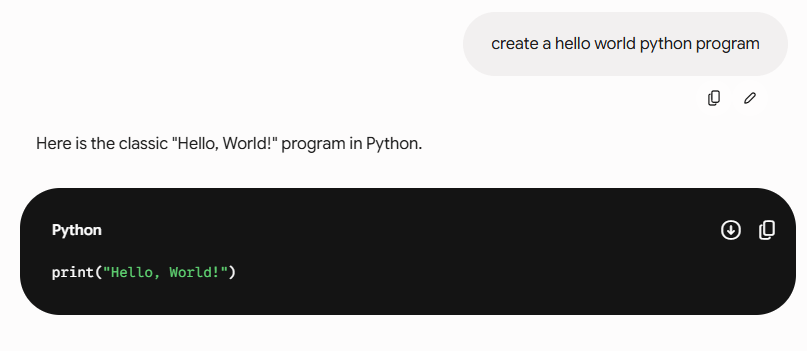
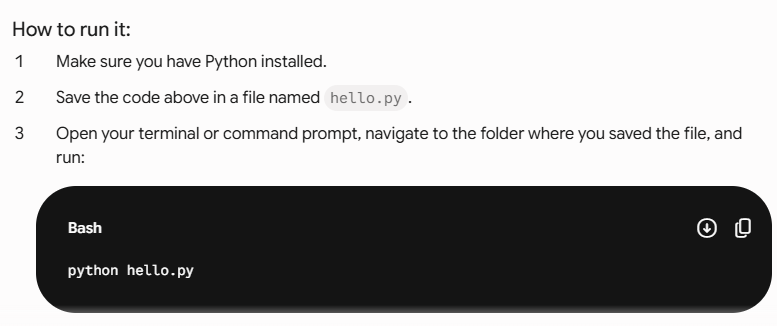
Let’s say you need a simple Python program to calculate the average of student marks. Instead of opening multiple tutorials and searching through forums, you can simply ask Gemini:
“Write a Python program to calculate the average of five student marks.”
Within seconds, it gives you working code along with a short explanation.
I remember helping a friend who was learning JavaScript. He needed a basic to-do list app for practice. Rather than spending half a day searching YouTube videos, he asked Gemini for a simple project structure and starter code. It wasn’t perfect, but it gave him a solid starting point.
This works for many languages, including:
- Python
- JavaScript
- Java
- C++
- PHP
- SQL
- HTML and CSS
The better your instructions, the better the result. Instead of saying “write code,” explain exactly what you want the program to do. Small details make a big difference.
Debugging Errors
If you’ve ever spent three hours hunting for a missing semicolon or a misplaced bracket, welcome to the club.
Debugging can be frustrating. Sometimes the error message looks like it’s written in a secret language.
This is where Gemini can be useful.
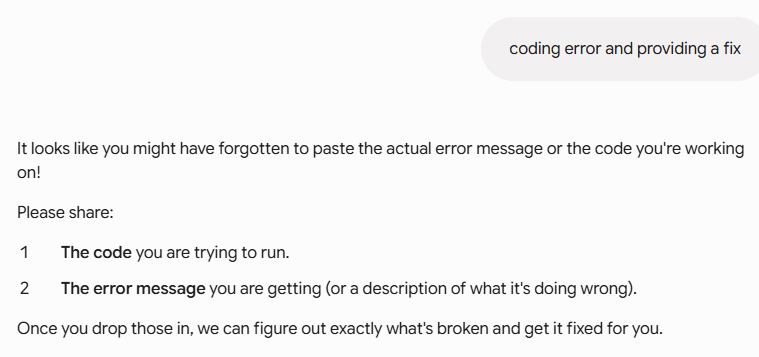
You can copy the error message, paste it into Gemini, and ask:
“Why am I getting this error and how can I fix it?”
Most of the time, Gemini identifies the problem and explains it in simple language.
A few weeks ago, I was testing a small Python script. The code looked fine, but it kept throwing an error. After checking it multiple times, I pasted it into Gemini. It pointed out that one variable name was spelled differently in two places. A tiny mistake. I probably would’ve overlooked it for another twenty minutes.
That doesn’t mean Gemini is always right. Sometimes it suggests fixes that don’t work. That’s why you should test everything yourself. Still, it can save a lot of time when you’re stuck.
Learning Programming
Learning a new programming language can feel overwhelming at first.
You open a tutorial and suddenly you’re seeing variables, loops, functions, classes, APIs, frameworks… and your brain starts asking for a vacation.
Gemini can make the learning process feel less intimidating.
Instead of reading long technical explanations, you can ask questions naturally.
For example:
- “Explain Python loops like I’m a beginner.”
- “What’s the difference between Java and JavaScript?”
- “Teach me SQL step by step.”
The answers usually feel more conversational than a textbook.
What I like most is that you can keep asking follow-up questions without feeling embarrassed. No one is judging you for asking the same thing three times.
When I was first learning SQL years ago, I would’ve loved having something like this. Back then, I had dozens of browser tabs open and still felt confused. Gemini can explain things instantly and adjust its explanation based on your level.
Code Explanation
Sometimes you find a piece of code online and have absolutely no idea what it’s doing.
Maybe it’s from GitHub. Maybe it’s from a tutorial. Maybe it’s code written by your coworker at 2 AM.
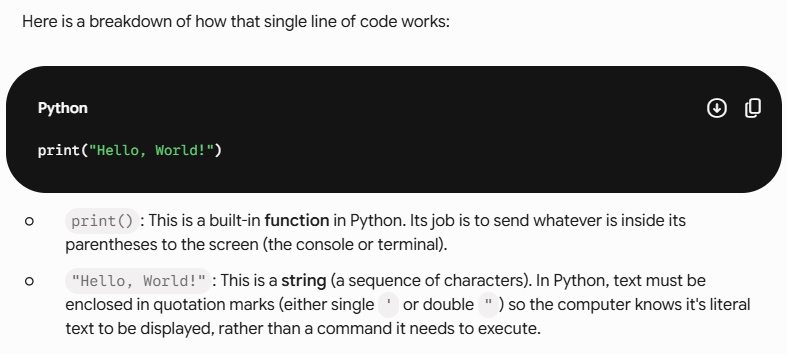
Instead of guessing, you can paste the code into Gemini and ask:
“Explain this code line by line.”
This is one of my favorite features.
Gemini breaks down the code into smaller parts and explains what each section does. It can even explain complicated functions in plain English.
For beginners, this can speed up learning because you’re not just copying code anymore. You’re actually understanding it.
I’ve used this while exploring open-source projects. Some files looked intimidating at first glance. After asking Gemini to explain them, everything started making more sense.
The more you understand existing code, the faster you grow as a developer.
Google Gemini works best when you treat it as a helper, not a replacement for learning. It can generate code, fix bugs, explain concepts, and teach programming in a way that’s easy to understand. But your real progress still comes from practicing, building projects, making mistakes, and figuring things out along the way. Gemini simply makes that journey a little smoother.
Google Gemini vs ChatGPT: Which AI Is Better?
If you’ve spent even a little time looking into AI tools, you’ve probably asked yourself the same question I did:
Should I use Google Gemini or ChatGPT?
Honestly, there isn’t one perfect answer.
A few months ago, I started using both almost every day. Sometimes I opened Gemini first. Other times, ChatGPT felt like the better choice. After hundreds of prompts, blog drafts, research sessions, and random questions that popped into my head at midnight, I realized something.
They are both powerful, but they shine in different situations.
Think of it like having two smart friends. One is amazing at finding information and connecting with Google’s ecosystem. The other is excellent at explaining things, brainstorming ideas, and helping you work through problems step by step.
Here’s a quick comparison.
| Feature | Gemini | ChatGPT |
|---|---|---|
| Research | Excellent access to Google services and web-based information | Strong research assistance with detailed explanations |
| Coding | Good for coding tasks and debugging | Excellent for coding, troubleshooting, and learning programming |
| Writing | Good for summaries, emails, and quick drafts | Excellent for blogs, stories, long-form content, and editing |
| Integrations | Deep integration with Google Workspace | Integrates with many tools and platforms |
| Images | Strong image generation and analysis features | Strong image creation, editing, and visual assistance |
Gemini Is Great If You Live Inside Google’s World
If you’re already using Gmail, Google Docs, Google Drive, Google Sheets, and Google Calendar every day, Gemini feels surprisingly convenient.
The first time I asked Gemini to summarize information from Google Workspace tools, it saved me a lot of time. Instead of jumping between different tabs, I could get help directly inside Google’s ecosystem.
Let’s say you’re a student.
You have lecture notes in Google Docs, assignments in Drive, and emails from your professor sitting in Gmail. Gemini can fit naturally into that workflow.
The same goes for business owners and office workers who spend most of their day using Google products.
That’s where Gemini really stands out.
ChatGPT Feels Like a Better Conversation Partner
Now, this is where ChatGPT often wins for me.
When I need an article outline, blog content, coding explanations, business ideas, or help understanding a difficult topic, ChatGPT usually gives longer and more detailed responses.
I remember trying to learn a new technical concept that seemed confusing at first. Gemini gave me a decent explanation, but ChatGPT broke it down into simple examples that felt easier to understand.
It was almost like talking to a patient teacher who didn’t mind repeating things until they clicked.
For beginners, that matters.
A lot.
Which One Is Better for Writing?
If your goal is writing blog posts, YouTube scripts, emails, social media captions, or marketing content, I personally find ChatGPT more helpful.
The responses often feel more natural and flexible.
For example, if I ask:
“Write a blog introduction about learning English using AI.”
ChatGPT usually gives me multiple angles and styles to choose from.
Gemini can absolutely write content too. It handles summaries, outlines, and shorter pieces quite well. But when I need long-form writing with more creativity, I usually reach for ChatGPT first.
Which One Is Better for Research?
This one is interesting.
Gemini has a clear advantage when your work depends heavily on Google’s ecosystem and current web information.
Imagine you’re researching:
- Latest technology updates
- Market trends
- News-related topics
- Information connected to Google services
Gemini often feels very comfortable handling those tasks.
That said, ChatGPT is excellent when you need explanations, comparisons, brainstorming, and organizing complex information into something easy to understand.
So the answer depends on what you mean by “research.”
Finding information and gathering sources? Gemini is very strong.
Understanding information and turning it into useful ideas? ChatGPT often feels stronger.
Which One Is Better for Coding?
Developers will probably want to try both.
When I tested coding prompts, both tools produced useful code.
ChatGPT generally felt better at explaining why something worked or didn’t work. If you’re learning programming, those explanations can save hours of frustration.
Gemini handled code generation well too, especially for common tasks and debugging.
If you’re a beginner programmer, ChatGPT may feel easier to learn from.
If you’re already experienced, you’ll likely get value from both.
Real-World Example
Let’s imagine two people.
Ravi is a college student.
He uses Google Docs for notes, Gmail for communication, and Google Drive to store assignments. Gemini fits naturally into his daily routine and helps him stay productive.
Priya is a blogger and content creator.
She spends hours writing articles, brainstorming headlines, creating outlines, and improving content. ChatGPT helps her generate ideas faster and refine her writing.
Neither person is wrong.
They’re simply using the tool that matches their work.
So, Which AI Should You Choose?
If your work revolves around Google products, online research, and productivity tasks, Gemini is an excellent choice.
If you create content, learn new skills, solve coding problems, brainstorm ideas, or want detailed explanations, ChatGPT is often the stronger option.
The funny thing is, many people don’t actually need to choose one.
I use both.
Sometimes Gemini gives me exactly what I need. Other times ChatGPT saves the day.
Instead of asking which AI is better overall, a better question might be:
Which AI is better for the task you’re doing right now?
That’s usually where you’ll find the real answer.
Google Gemini Tips and Tricks
The first time I used Google Gemini, I treated it like a search engine. I typed a few words, waited for an answer, and honestly? The results were just okay.
Then I started experimenting.
I asked better questions. I uploaded files. I kept the conversation going instead of starting over every time. That’s when Gemini became much more useful.
If you’re only asking simple one-line questions, you’re probably using just a small part of what Gemini can actually do. These tips helped me get better answers, save time, and avoid frustration.
Use Detailed Prompts
One of the biggest mistakes people make is being too vague.
Imagine walking up to a friend and saying, “Help me with my blog.”
They’d probably stare at you and ask, “Help with what exactly?”
Gemini works the same way.
The more details you provide, the better the response usually becomes.
Instead of writing:
Write a blog post about fitness.
Try something like:
Write a 1,500-word beginner-friendly blog post about home workouts for busy office workers. Use simple language, practical examples, and include a weekly workout plan.
See the difference?
The second prompt gives Gemini a clear direction.
Whenever I need content, research, ideas, or explanations, I try to answer these questions in my prompt:
- What do I need?
- Who is it for?
- How long should it be?
- What tone should it use?
- Are there any specific requirements?
A few extra seconds spent writing a detailed prompt can save you several minutes of editing later.
Upload Files for Better Results
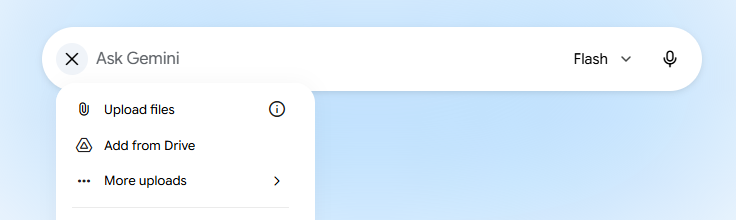
A lot of people don’t realize Gemini can work with files.
This feature can be surprisingly useful.
Let’s say you have:
- A PDF report
- Meeting notes
- Research papers
- Spreadsheets
- Project documents
Instead of reading hundreds of pages yourself, you can upload the file and ask Gemini specific questions.
I’ve uploaded long reports before and asked things like:
Summarize the key findings.
Or:
Explain this report in simple language for beginners.
Sometimes I even ask:
What are the most important statistics in this document?
The time savings can be huge.
Just remember that AI can occasionally misunderstand information, so it’s always smart to double-check important facts.
Ask Follow-Up Questions
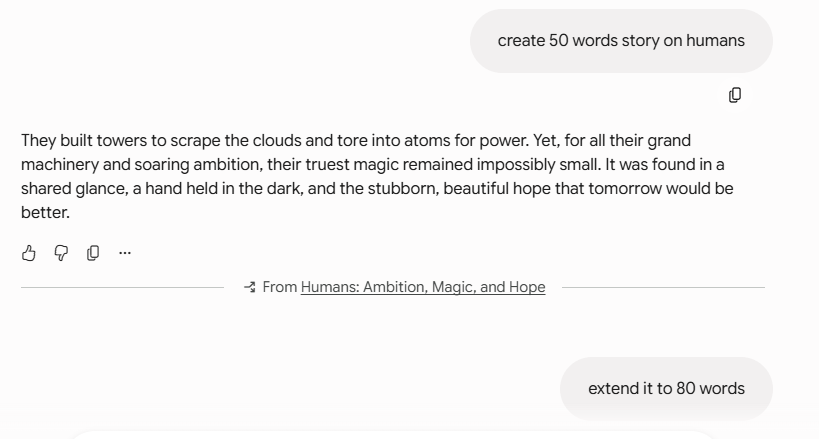
This is probably my favorite Gemini trick.
Most people ask one question, get an answer, and leave.
But the real magic often happens during the follow-up conversation.
For example, if Gemini helps you write a blog outline, don’t stop there.
You can continue with questions like:
- Can you simplify section three?
- Add more examples.
- Rewrite this for beginners.
- Give me five better headlines.
- Make the tone more conversational.
Think of it as working with an assistant rather than using a search engine.
I often spend ten or fifteen minutes refining a topic through follow-up questions. The final result is usually much better than the first answer.
The conversation builds context over time, which helps Gemini understand exactly what you’re trying to achieve.
Create Prompt Templates
If you do similar tasks regularly, prompt templates can save a surprising amount of time.
I learned this the hard way.
For months, I kept typing nearly the same instructions again and again.
Eventually, I created a small document with my favorite prompts.
Now I simply copy, paste, and adjust a few details.
For example, if you’re a blogger, you might create templates for:
- Blog outlines
- SEO articles
- Social media posts
- Email newsletters
- Product reviews
A simple template could look like this:
Act as an expert [industry] writer. Create a detailed article about [topic]. Use simple language, practical examples, and a conversational tone. The target audience is [audience].
Nothing fancy.
Just something that gives you a reliable starting point.
Over time, you’ll build a collection of prompts that work well for your specific needs.
Use Gemini Extensions
Many users never touch Gemini Extensions, which is a bit of a missed opportunity.
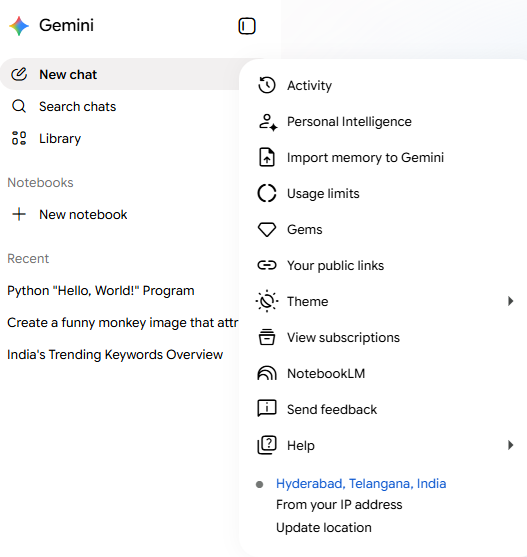
Extensions allow Gemini to connect with other Google services and help you complete tasks faster.
For example, Gemini can assist with information connected to:
- Gmail
- Google Drive
- Google Docs
- Google Maps
- YouTube
Imagine asking:
Find the email I received about the project deadline.
Or:
Summarize the document I saved in Google Drive yesterday.
That kind of integration can be incredibly convenient when you’re juggling multiple tasks.
I especially like using Gemini alongside Google Docs because it helps with brainstorming, rewriting sections, and organizing ideas without constantly switching between tools.
The funny thing about Gemini is that most people only use a fraction of its capabilities.
A better prompt here. A follow-up question there. Uploading a file instead of copying text. Small changes, really.
But those small changes add up.
Once you get comfortable experimenting, Gemini starts feeling less like a chatbot and more like a helpful assistant sitting beside you, ready to tackle whatever task is next.
Common Google Gemini Mistakes to Avoid
Google Gemini can save a lot of time. It can help you write, research, summarize information, and even solve problems. But I’ve noticed something interesting. Most mistakes don’t happen because Gemini is bad. They happen because people expect too much from it or use it the wrong way.
I’ve made some of these mistakes myself. Honestly, after getting a surprisingly confident but completely wrong answer once, I learned pretty quickly that AI isn’t magic. It’s a tool. A very useful one, sure, but still just a tool.
Here are a few mistakes you should avoid if you want better results from Google Gemini.
Blindly Trusting Everything Gemini Says
This is probably the biggest mistake.
Gemini often sounds confident. That’s what makes it tricky sometimes. It can give an answer that looks professional, feels correct, and reads smoothly. Then you check the facts and realize parts of it aren’t accurate.
Think about it like asking a friend for advice. Your friend may sound certain, but that doesn’t automatically mean they’re right.
For example, if Gemini gives you medical advice, legal information, financial suggestions, or important statistics, don’t accept it without checking trusted sources. A few extra minutes of verification can save you from bigger problems later.
I like to treat Gemini as a helpful assistant, not the final authority.
Using Poor or Vague Prompts
Another common issue is giving Gemini almost no information and expecting amazing results.
Imagine walking into a restaurant and saying, “Bring me food.” What kind of food? Spicy? Sweet? Vegetarian? Nobody knows.
The same thing happens with AI.
A prompt like:
“Write an article.”
will usually produce a generic response.
But something like:
“Write a beginner-friendly 1,000-word article about starting a blog in India with practical examples and simple language.”
gives Gemini much more direction.
The more context you provide, the better the output tends to be. You don’t need complicated prompt engineering. Just explain what you actually want as clearly as possible.
Not Fact-Checking Important Information
People often ask, “Why is Gemini giving wrong answers?”
The truth is that AI systems can sometimes misunderstand information, miss context, or pull together details that don’t fully match reality.
That’s why fact-checking matters.
If you’re creating blog posts, school assignments, business reports, or research content, double-check important facts, dates, names, and statistics before publishing.
I’ve seen AI-generated content mention outdated information with complete confidence. If nobody verifies it, those mistakes can end up on websites, presentations, and social media posts.
A simple fact-check can protect your credibility.
Ignoring Privacy Concerns
This one doesn’t get talked about enough.
Many people paste personal details, passwords, confidential company information, customer records, or sensitive documents into AI tools without thinking twice.
That’s risky.
Before sharing anything with Gemini, ask yourself a simple question:
“Would I be comfortable if this information became public?”
If the answer is no, don’t upload it.
Personal data, financial records, business secrets, and private client information should always be handled carefully. AI tools are incredibly useful, but protecting your privacy should come first.
Remember: Gemini Has Limits
Google Gemini is powerful, but it isn’t perfect. It can help you think faster, work faster, and learn faster. What it can’t do is replace human judgment.
The people who get the best results from Gemini usually follow a simple rule: use AI for assistance, not blind decision-making.
Ask better questions. Verify important information. Protect your private data. And keep your own common sense switched on.
Do that, and Gemini becomes a genuinely useful tool instead of a source of avoidable mistakes.
Frequently Asked Questions About Google Gemini
Is Google Gemini Free?
Yes, Google Gemini has a free version, and honestly, that’s where most people start.
You can sign in with your Google account and begin using Gemini without paying anything. The free version is good enough for everyday tasks like asking questions, writing emails, brainstorming ideas, summarizing articles, and even helping with homework.
That said, Google also offers Gemini Advanced, which comes with more powerful AI models and extra features. If you’re a casual user, the free version will probably do everything you need. But if you create content every day, run a business, or work with large amounts of information, the paid version might save you a lot of time.
I used the free version for quite a while before even thinking about upgrading. For many people, there’s no rush.
Is Gemini Safe?
For regular use, Gemini is generally safe.
You can ask questions, generate content, summarize documents, and get help with different tasks without worrying too much. Google also has privacy controls that allow you to manage your activity and data.
Still, I wouldn’t treat Gemini like a private diary.
A good rule is simple: don’t share passwords, bank details, confidential business information, or anything you wouldn’t want stored online. That’s not just Gemini advice—it’s smart internet advice in general.
Think of Gemini as a helpful assistant sitting in a public office. You can ask for help, but you probably wouldn’t hand over your house keys.
Can Gemini Generate Images?
Yes, it can.
One of the fun things about Gemini is that it can create images from text descriptions. You simply tell it what you want to see, and it generates an image based on your instructions.
For example, you could type something like:
“Create an image of a golden retriever sitting on a beach during sunset.”
A few moments later, Gemini can produce an image matching that description.
The better your description, the better the result usually is. Adding details about colors, style, lighting, mood, or background often helps.
It’s surprisingly useful for bloggers, marketers, students, and even people who just want to experiment with creative ideas.
Can Gemini Access the Internet?
Yes, in many cases it can.
Unlike some AI tools that only rely on older training data, Gemini can often pull information from the web to answer current questions.
For example, if you ask about recent news, sports results, product launches, or current trends, Gemini may search online sources to provide updated information.
Of course, no AI is perfect.
I’ve occasionally seen Gemini misunderstand a source or miss a detail. That’s why I always recommend double-checking important facts, especially if you’re using information for work, school, or publishing online.
A quick fact-check takes a minute. Fixing a mistake later can take much longer.
Is Gemini Advanced Worth It?
The answer depends on how often you use it.
If you’re only asking occasional questions, writing a few emails, or getting help with simple tasks, the free version is usually enough.
But if AI has become part of your daily workflow, Gemini Advanced starts making more sense.
Writers use it to create content faster. Developers use it to understand code. Students use it for research. Business owners use it to organize information and improve productivity.
When I first tested advanced AI tools, I was skeptical. I kept wondering whether they were really worth paying for. After using them for larger projects, I started noticing how much time they saved.
For some people, time savings alone justify the cost.
Can Gemini Replace ChatGPT?
Not completely.
This question comes up all the time because people naturally want to know which AI tool is “better.”
The truth is that both tools are strong, but they shine in different areas.
Some people prefer Gemini because it works closely with Google products like Gmail, Docs, Sheets, and Search. Others prefer ChatGPT for brainstorming, writing assistance, coding help, or custom workflows.
I often compare them to two skilled mechanics. Both can fix the car, but each has their own style and favorite tools.
Rather than asking which one is better, a smarter question might be:
“Which one fits my needs better?”
For many users, the answer is actually both.
Does Gemini Support Multiple Languages?
Yes, Gemini supports many languages.
You can chat with it in English, Hindi, Spanish, French, German, Japanese, and many other languages.
What’s nice is that it can often switch between languages during the same conversation. If you’re learning a language or communicating with people from different countries, that flexibility can be incredibly useful.
I’ve seen users ask questions in one language and request answers in another. Gemini usually handles that pretty well.
Just keep in mind that English responses are often the most detailed because that’s where AI systems tend to have the most training data.
How Accurate Is Gemini?
Gemini can be impressively accurate, but it’s not perfect.
Sometimes it gives excellent answers that save you hours of work. Other times it can confidently provide information that turns out to be wrong or incomplete.
That’s one of the strange things about AI. It can sound very convincing even when it makes mistakes.
For general questions, brainstorming, writing help, and learning new topics, Gemini is usually very helpful. But for medical advice, legal matters, financial decisions, or anything critical, you should always verify the information from trusted sources.
I treat Gemini like a knowledgeable friend. It’s great for ideas, explanations, and guidance. But before making an important decision, I still double-check the facts myself.
That approach has saved me from more than a few headaches.
Final Thoughts
If you’ve made it this far, you’re already ahead of most people who sign up for Google Gemini and never really use it beyond a few basic questions.
The biggest thing to remember is that Gemini gets better when you give it better instructions. Don’t worry if your first few prompts aren’t perfect. Mine weren’t either. I remember asking an AI tool to help me write a blog post, and the result was so generic that I laughed and started over. A few small changes to the prompt made a huge difference.
If you’re just getting started, keep it simple. Ask Gemini to summarize an article, draft an email, brainstorm blog ideas, or help with a homework question. Then try something a little more advanced, like analyzing a file or creating content from your notes.
The best way to learn is by experimenting. Click around, test features, make mistakes, and see what works for you. You might be surprised by how much time it can save once you get comfortable using it.
And honestly, that’s where the fun begins.




Leave a Reply